My Parts is a function that allows you to save the created parts and call them up from adding parts.It is convenient to register standard parts that are frequently used.You can also use it when you want to paste the saved parts on another page.
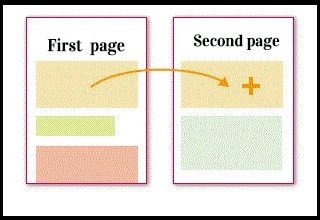
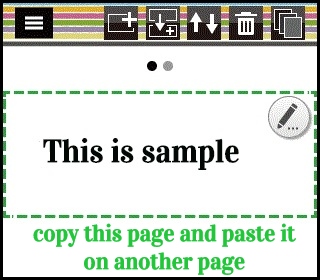
Let's see how to use My parts...
1) Copy to My parts
Press the Duplicate parts button at the top and then press the My parts button at the upper right of the screen..
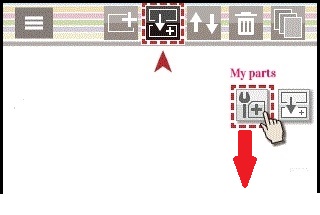
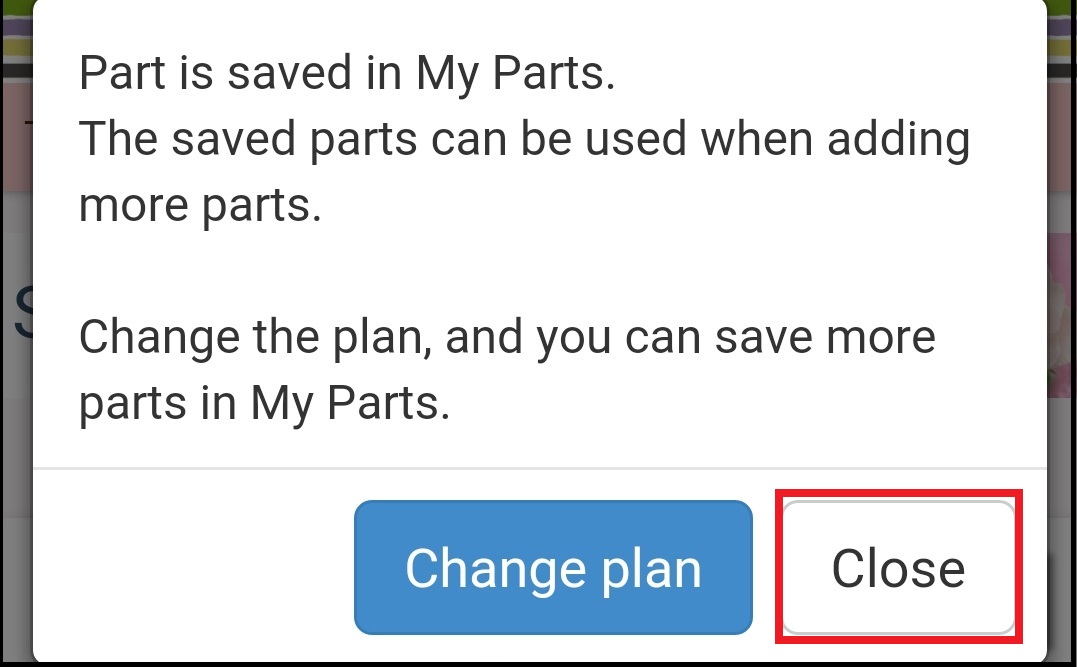
When My parts button is pressed it will registered as My parts.. Same time an explanation message will appear on your screen.. You can simply close that message..(The explanation depends on the plan) The number of My Parts that can be saved depends on the plan..
Free plan : 1 Light plan : 6
When the limit is exceeded, the oldest one is overwritten. (You can also delete it manually)
2) Page Switching
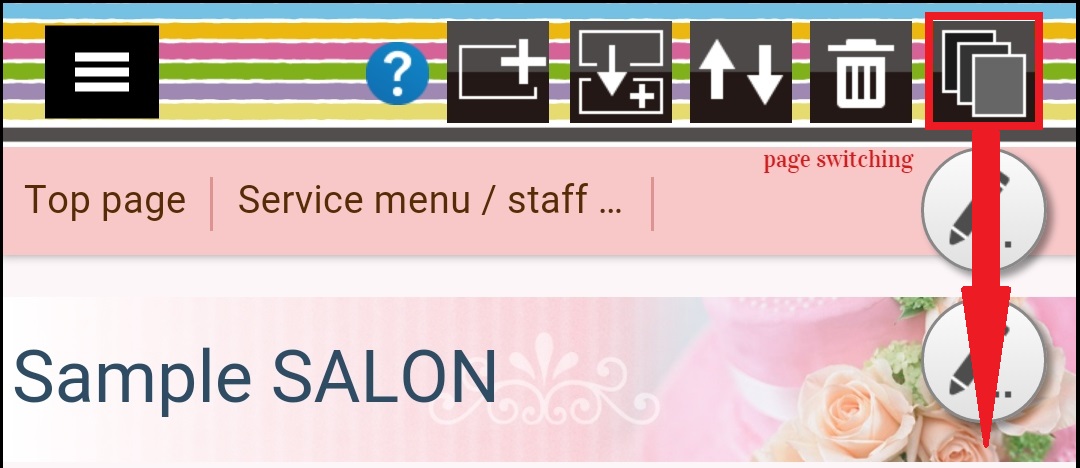
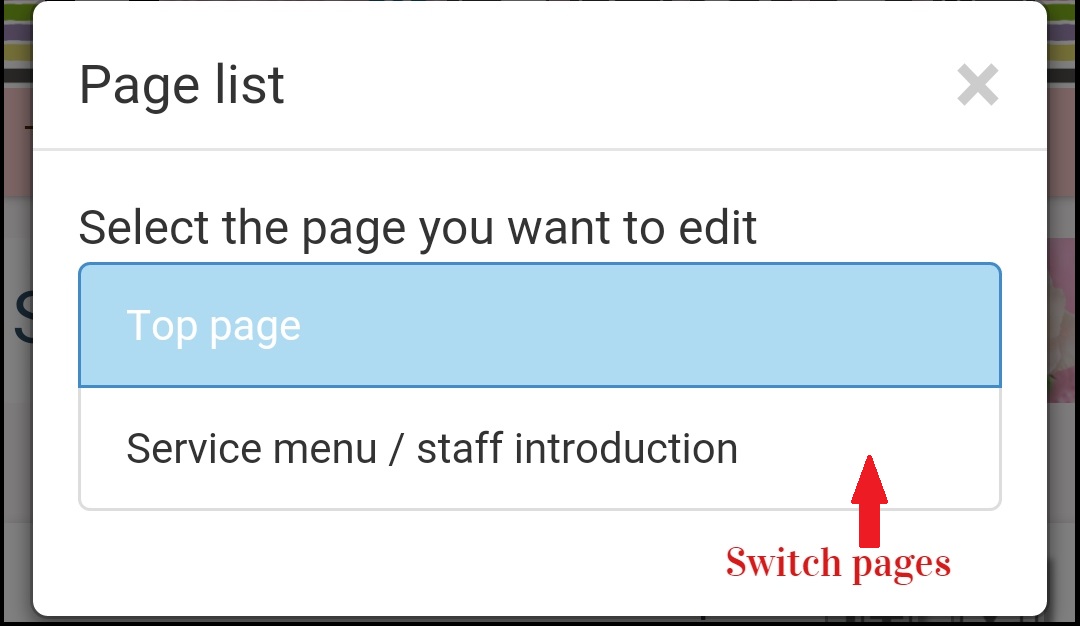
First switch to the page where you want to paste the part. Then press page switching button of the top and select the page you want to edit..
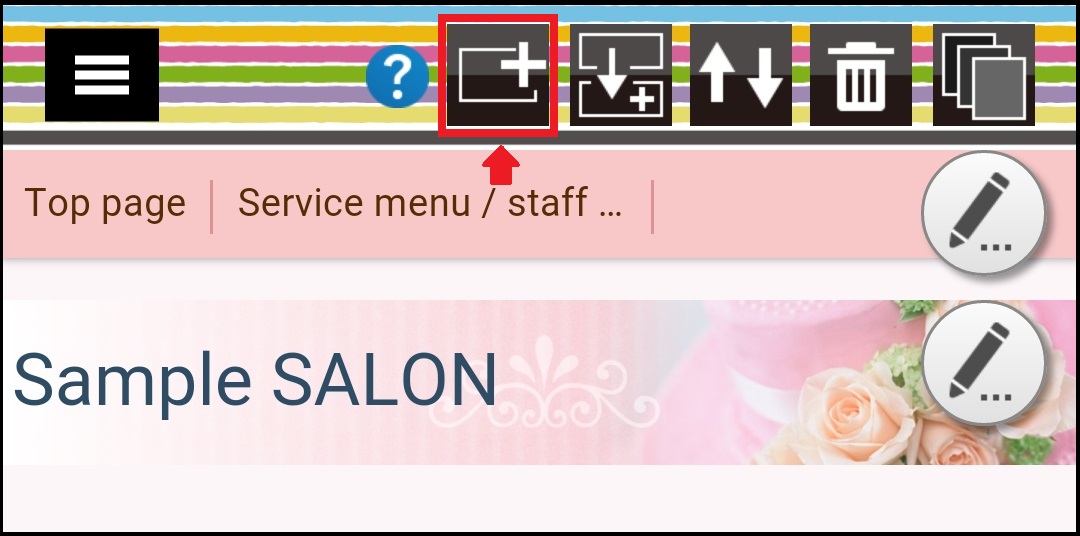
Then press the Add part button in top of the screen..
The parts you saved earlier already added under the "My Parts" now.. Clicking on the button you can check the content..
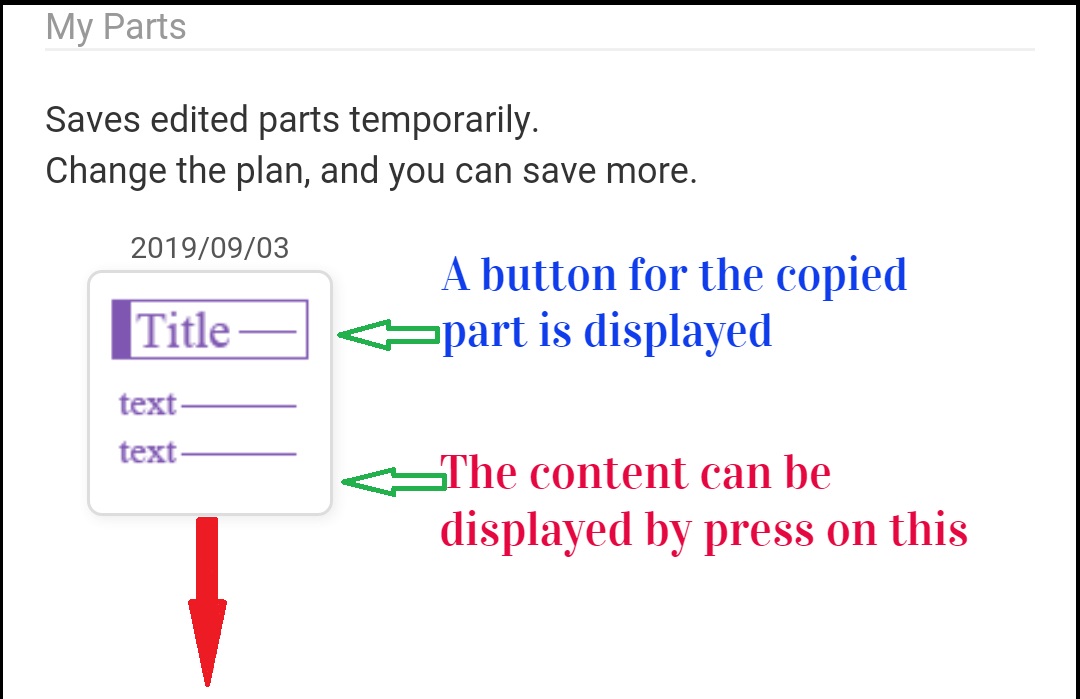
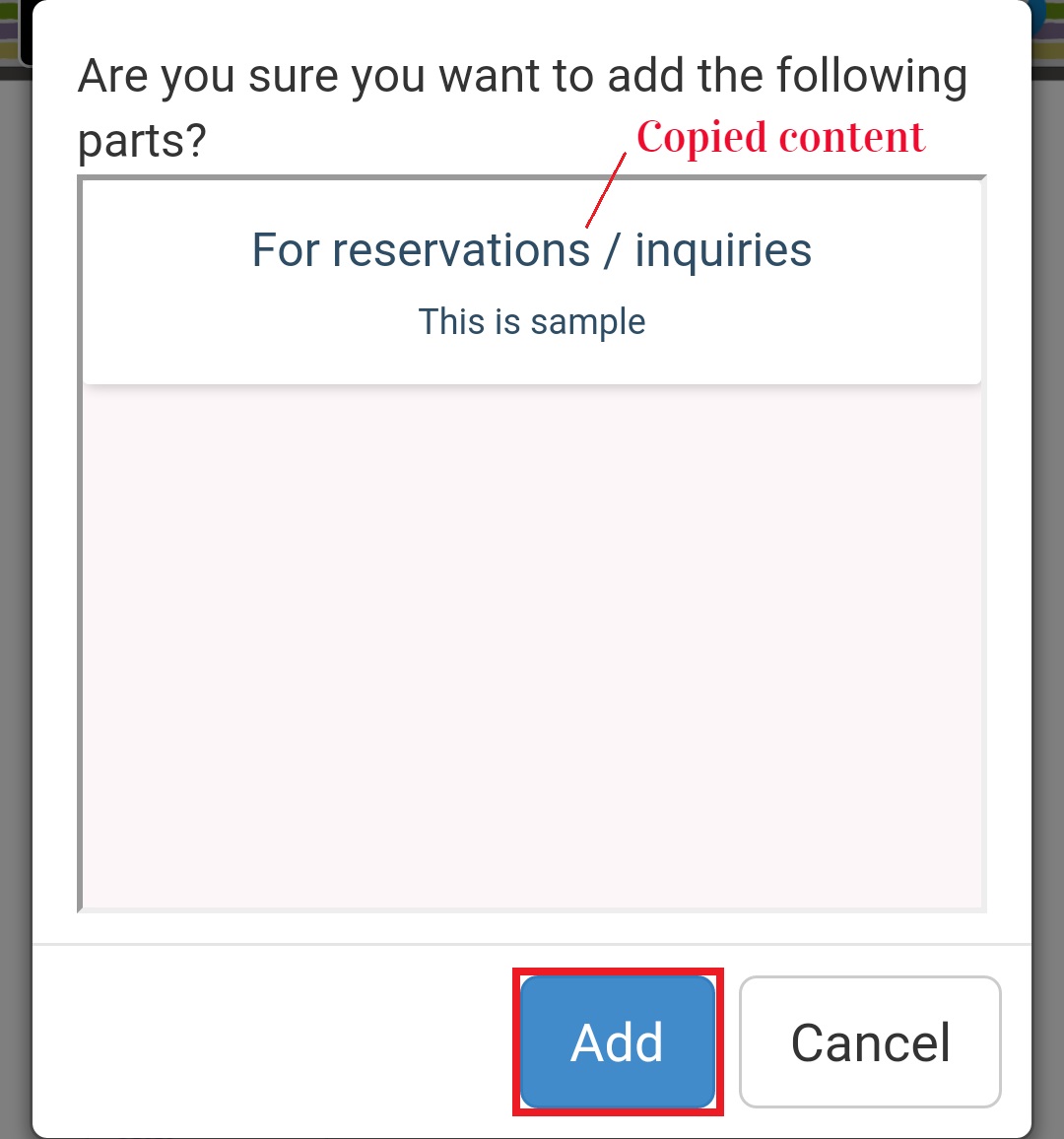
Now you can press “Add” button to add the saved parts.. The number above the My Parts button is the date when you saved it..When two or more parts are saved, a “Delete” button will displayed under the My parts..