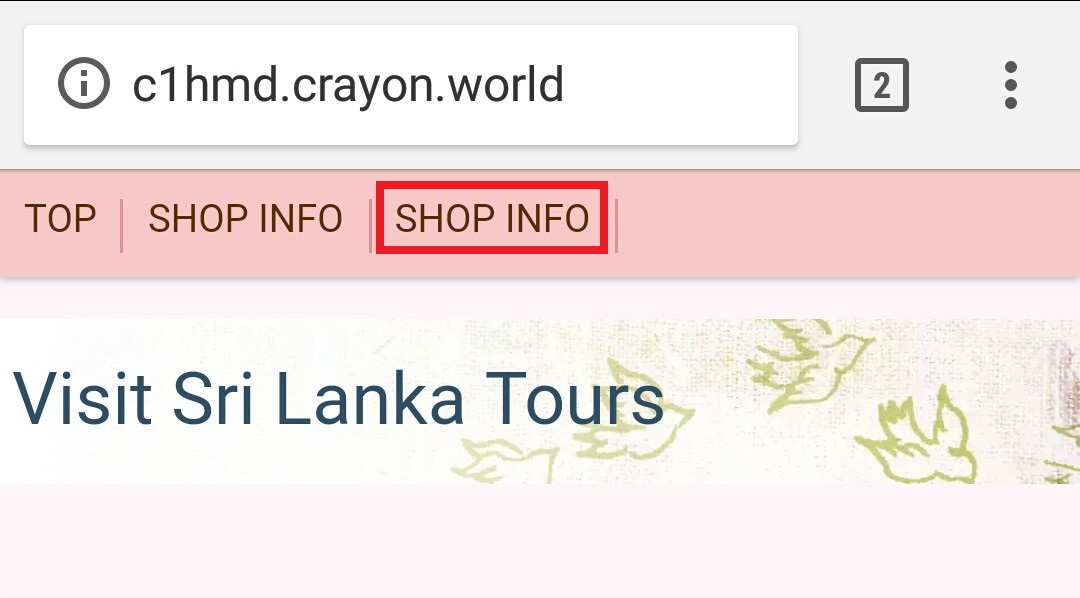
This is the icon you can make a duplicate copy of your existing page.. While you can edit a page and, copy/paste all its content in to a new draft.. None of the other elements such as featured images, data, page templates etc. would move over.. In this problem having a duplicate page feature is really useful..
***How to create a duplicate page?
Step 01
Click on the duplicate mark of the page edit screen..
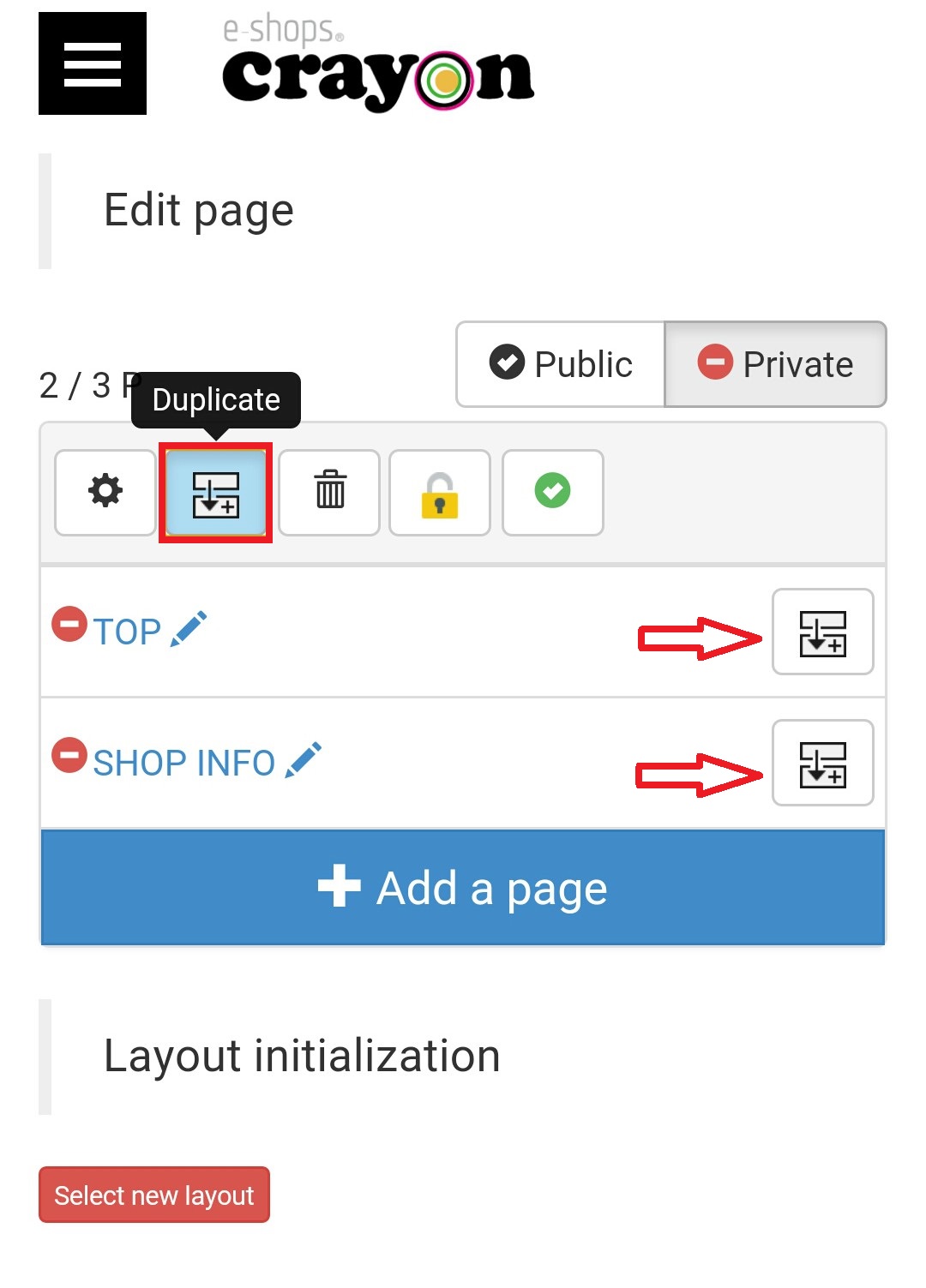
Now you can see the appearing of another two duplicate mark of your existing page..
Step 02
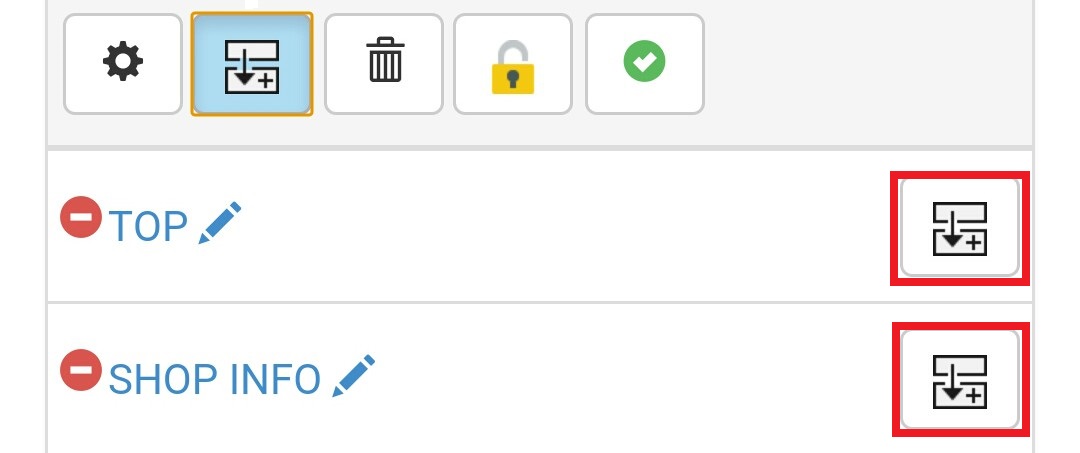
Now click on the duplicate mark the page you want make as a copy..
Step 03
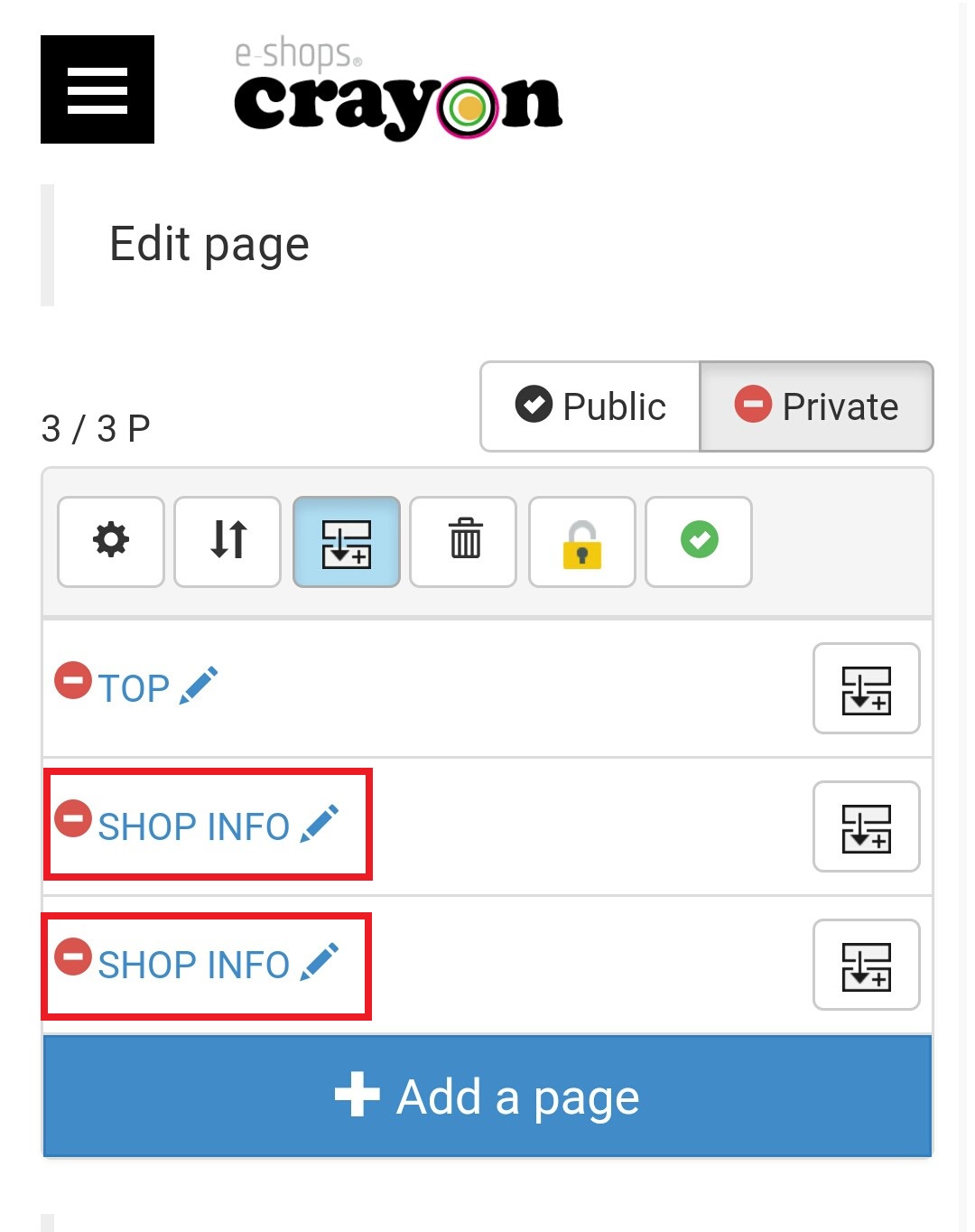
Here you can see the duplicate page created using this feature..
Step 04
Then Click on the green tick mark on the right hand top.. Now you can see the two icons called "public" & "private".. set it as a "public" in your duplicate page also..
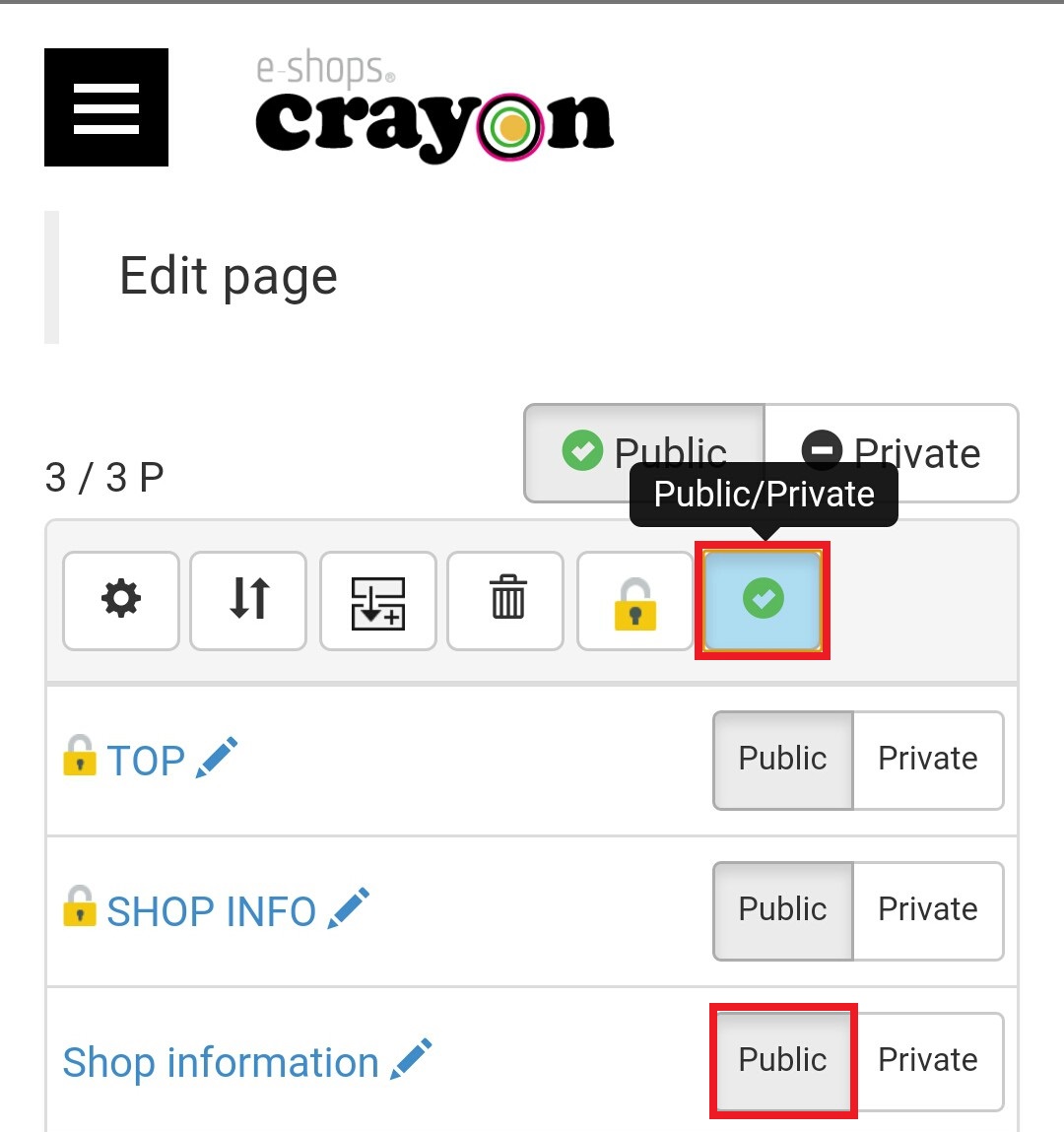
Step 05
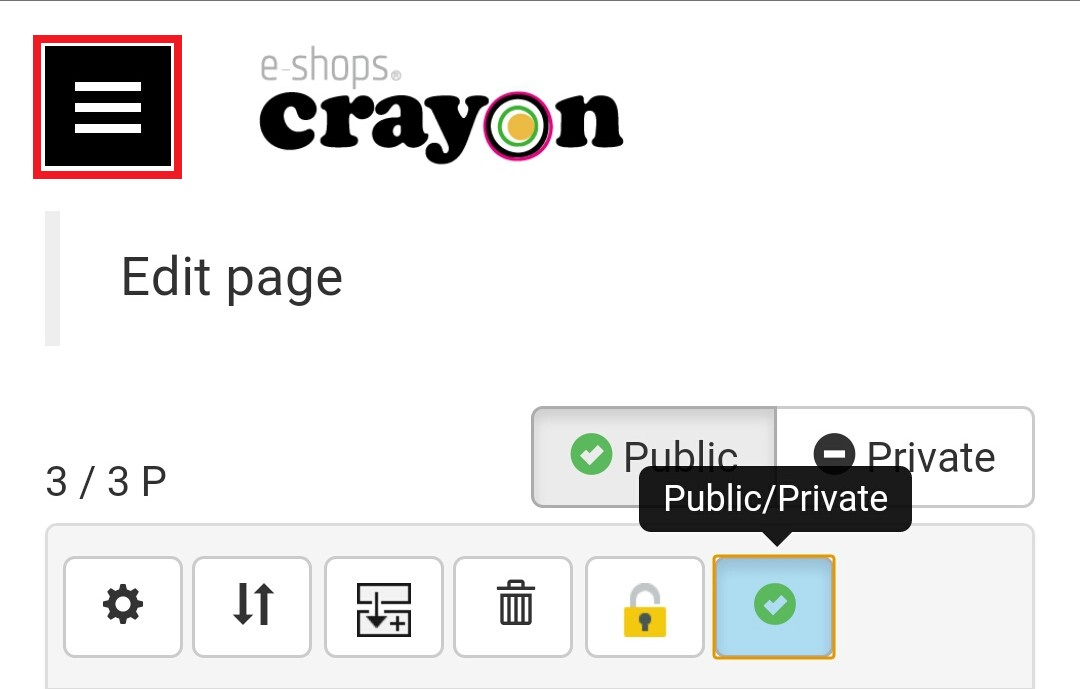
Now you can check whether your duplicate page appearing on your published home page.. Click on the Setting mark in top of the left hand side and select the "Public page" icon from the side menu...
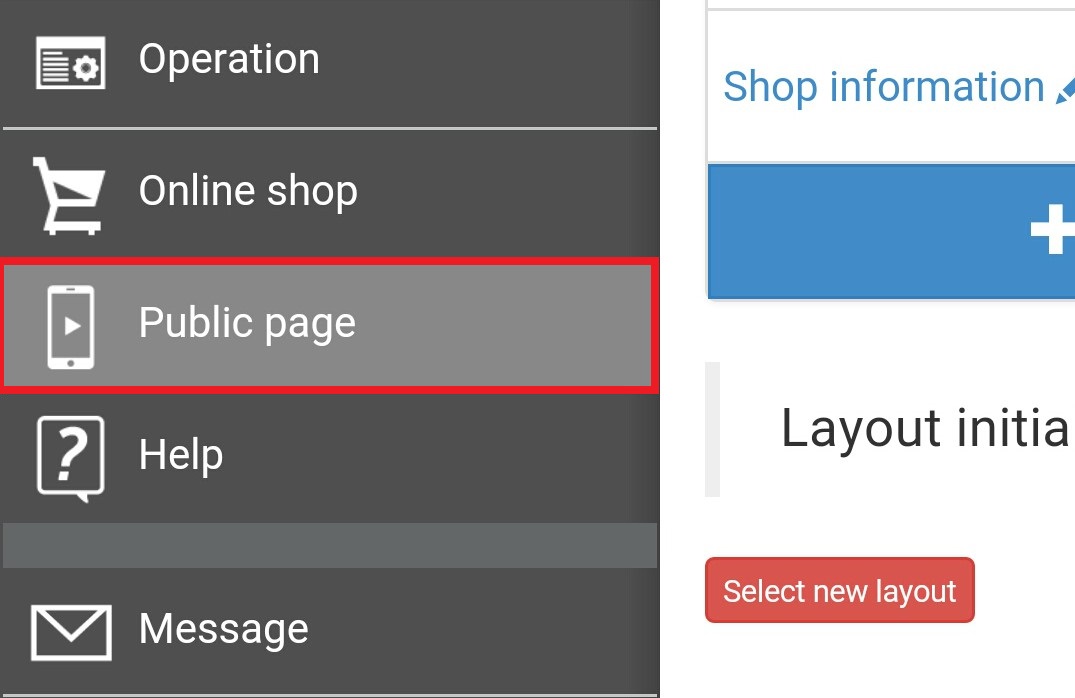
Now you can see your duplicate page in your published page like this