Here you can copy your parts from one page to another page using the facility provided under the "My parts".. In this method you can move your information among the pages easily.. This method can save your time and simply move your parts from page to another page...
***How to copy the parts among the pages?
Step 01
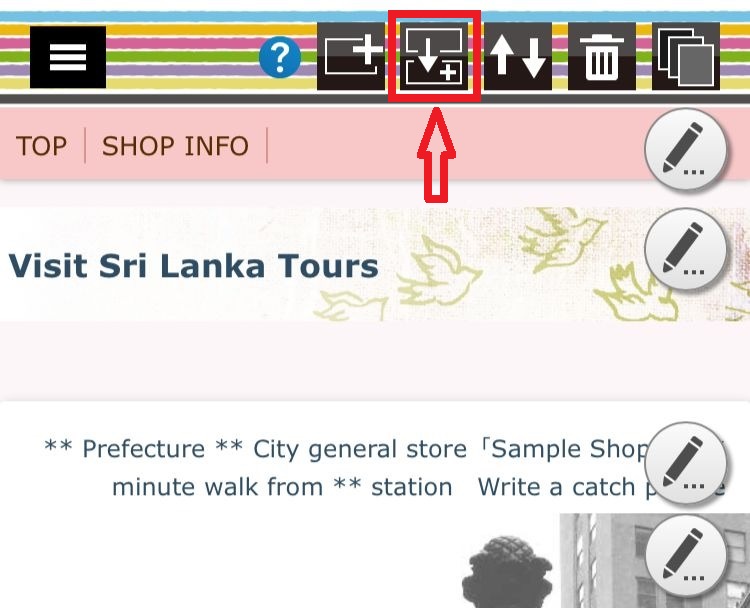
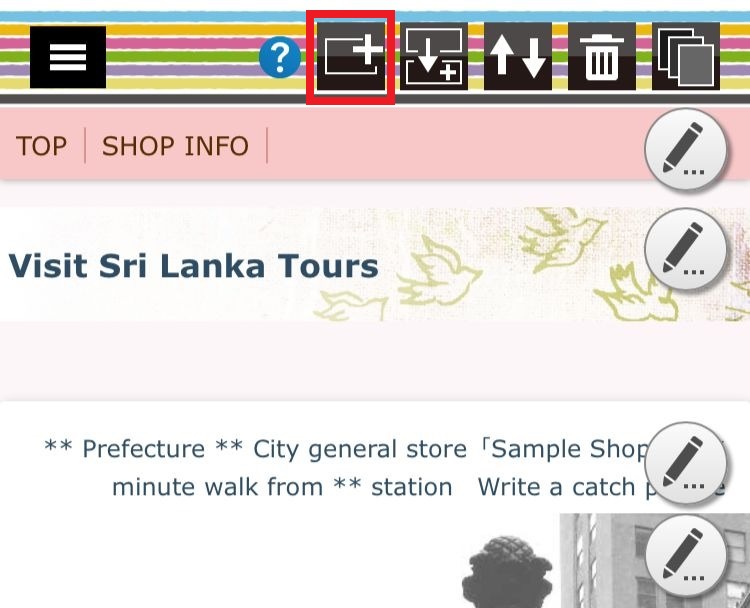
First you have to decide the page and part you want to move.. Then slect the copy

icon from top of the page...
Step 02
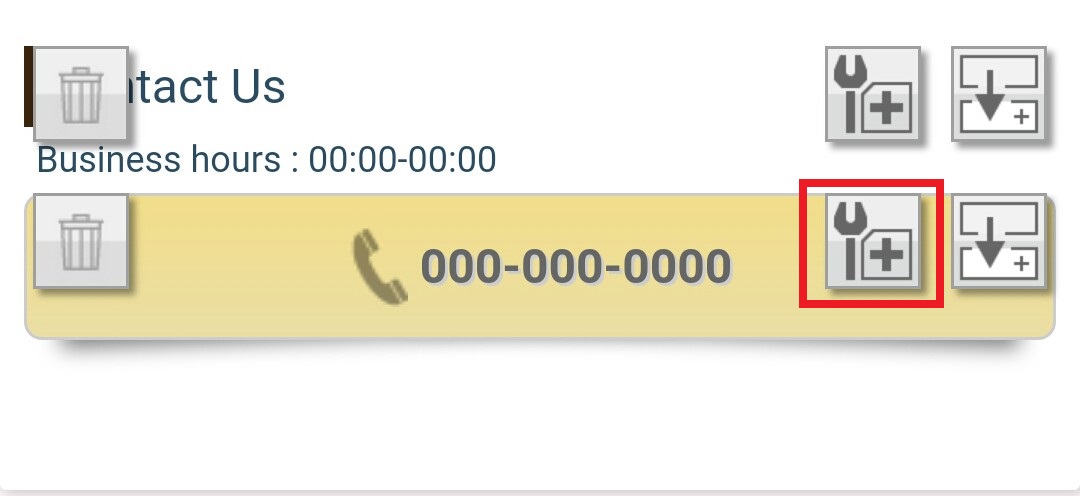
Here you can see adding the setting mark for all the parts.. Click on that mark in the selected part you want to copy..
Step 03
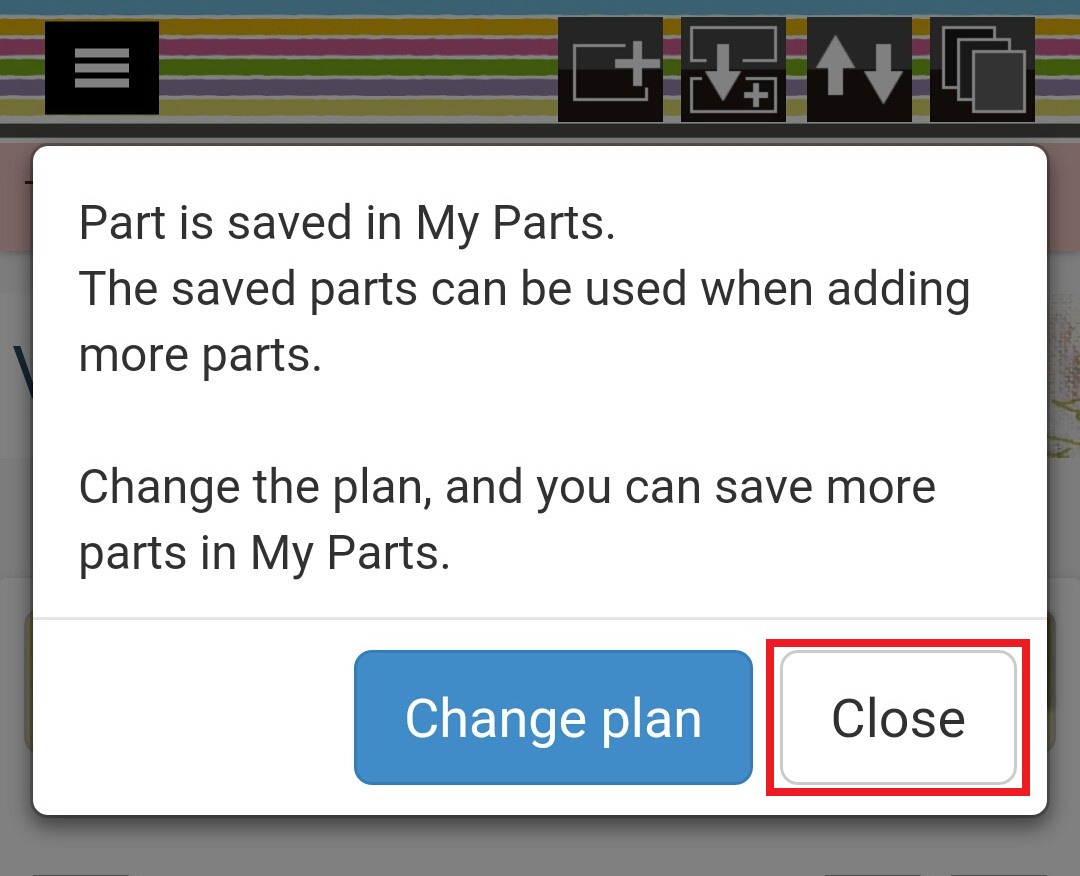
In this step you will have a message like below.. Select the close button here.. (If you are in a free plan you can copied only one part.. But if you are in a paid plan you can copied up to six parts)
Step 04
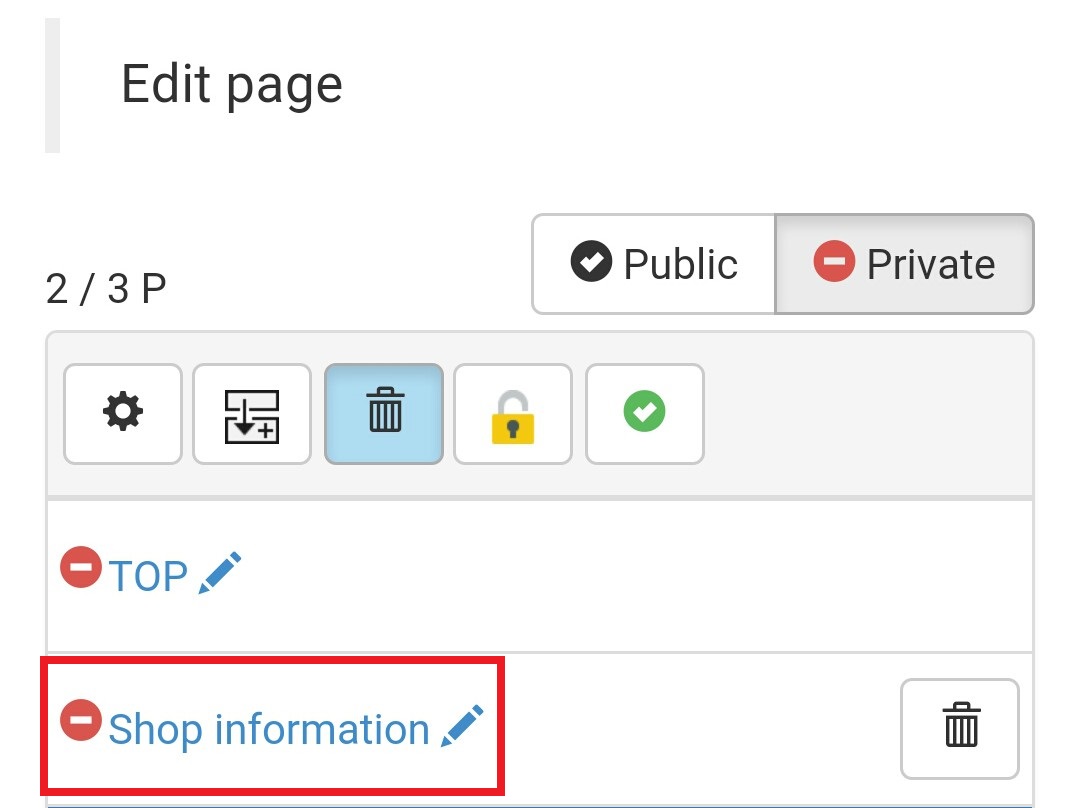
After that you have to move to your page edit screen.. In the page edit screen you can select the page that you want to paste the copied part..
Step 05
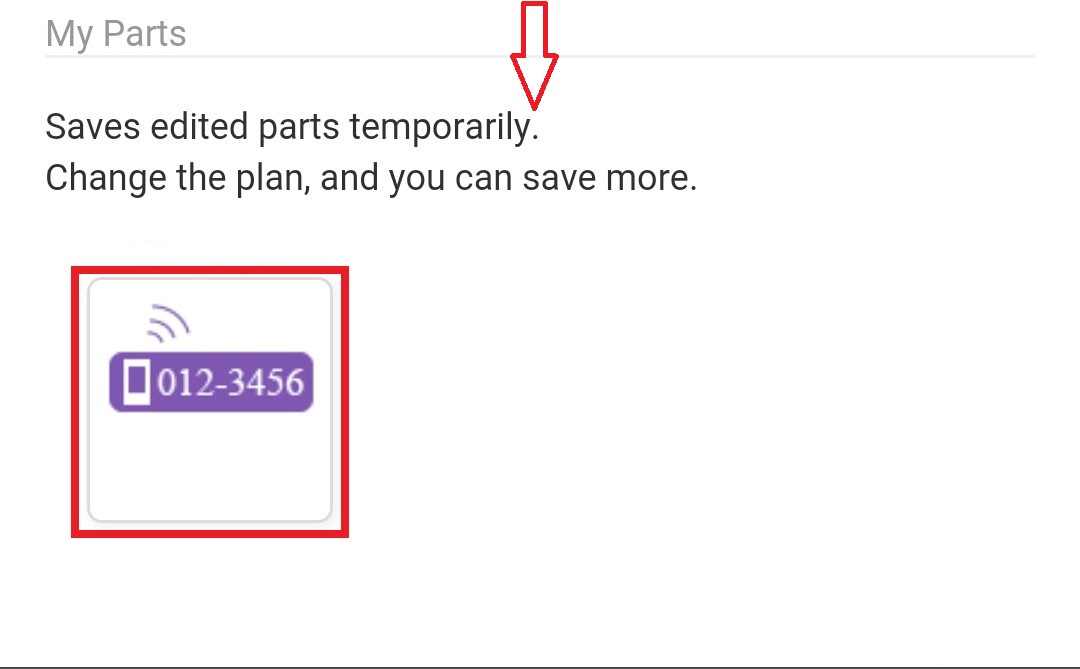
Here you are in the page that you want to paste your copied part.. now click on plus mark in top of the page and then select the "My part" icon from the parts list...
Step 06
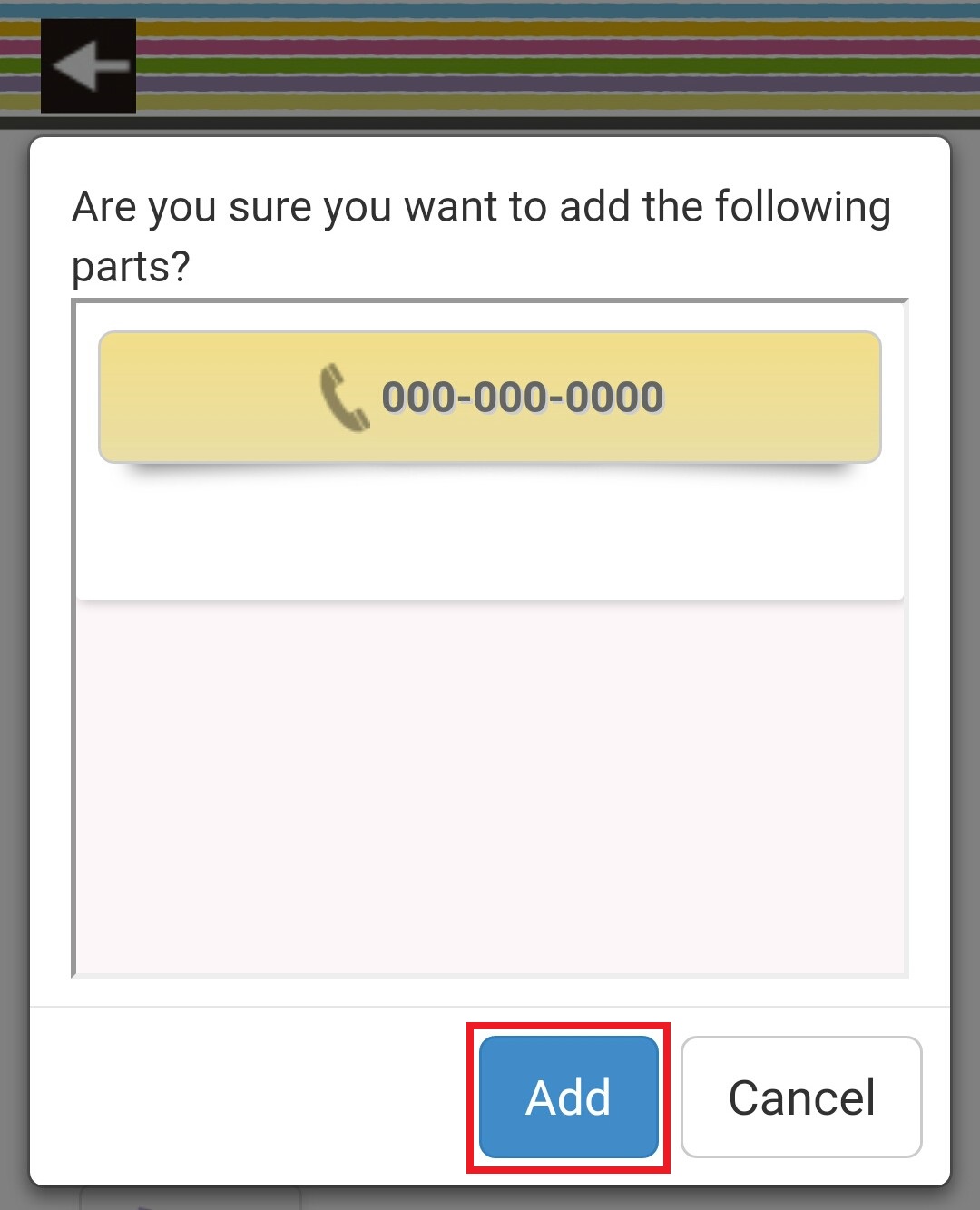
Then you can see your copied part in the box with a confirmation message to add.. Select the "Add" button here...
Now you can see your copied part paste in to selected page successfully..