Net shop is the facility that you can sell your products on the home page..
*** How to use the Crayon's net shop facility?
Step 01
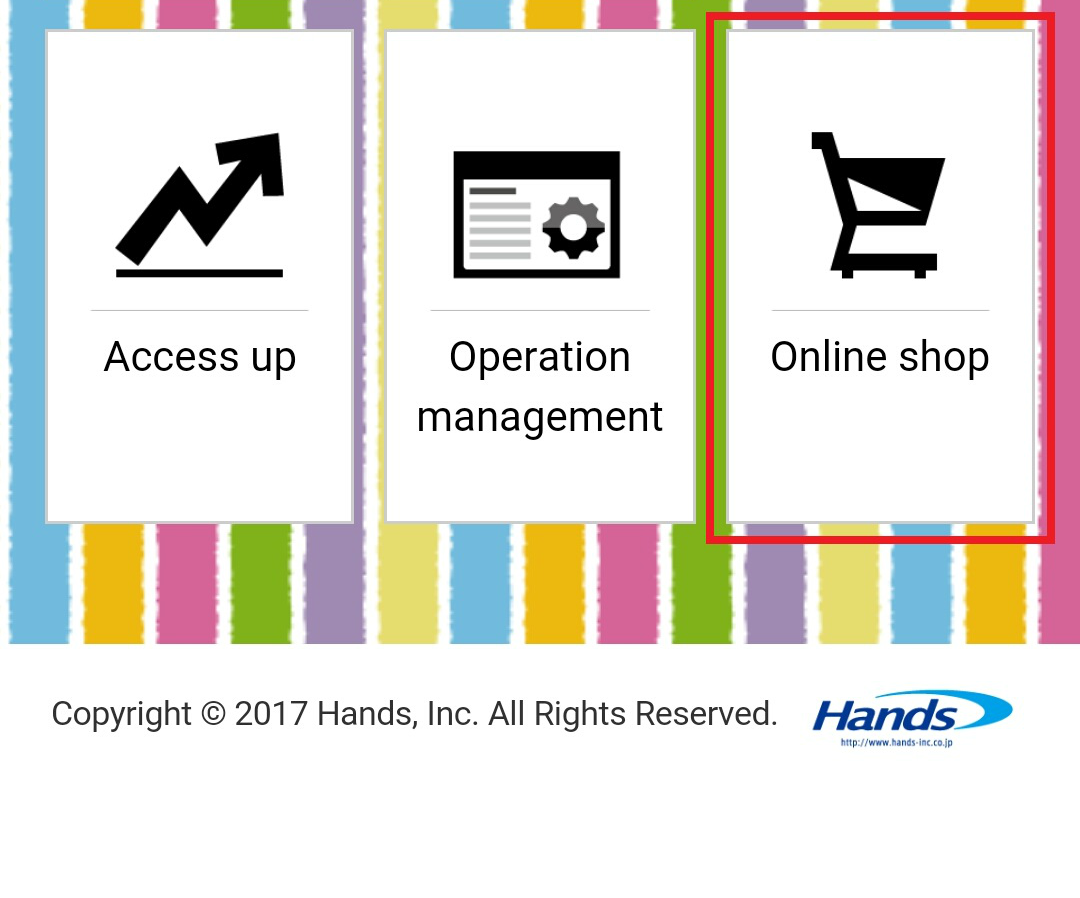
Select the net shop item in the management screen...
Step 02
Here you have "online shop setting" screen
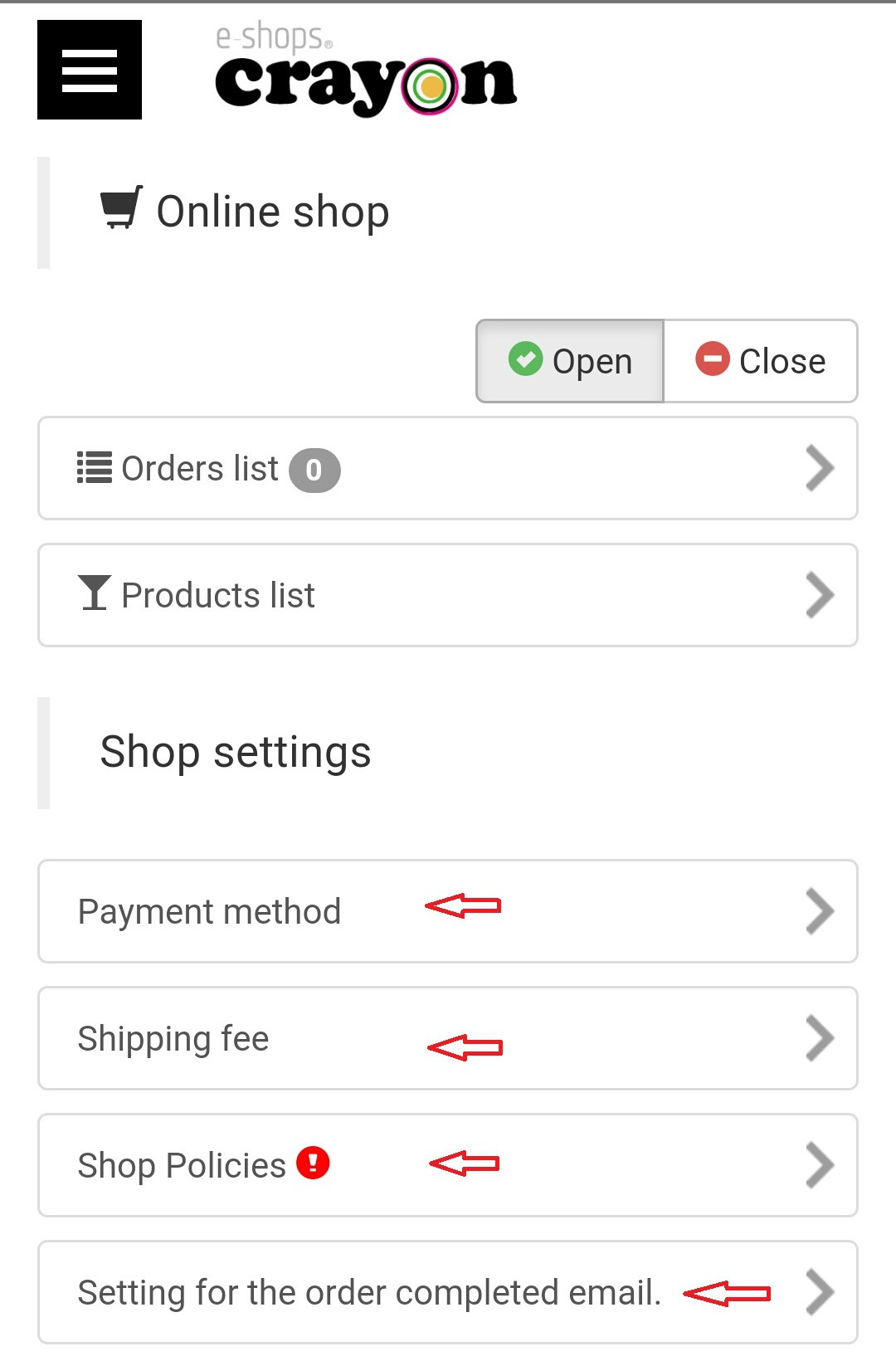
In this screen these four settings are required to fill, use the net shop function...
*** Payment method setting***
In this screen you have to select what kind of a payment method you hope to accept..
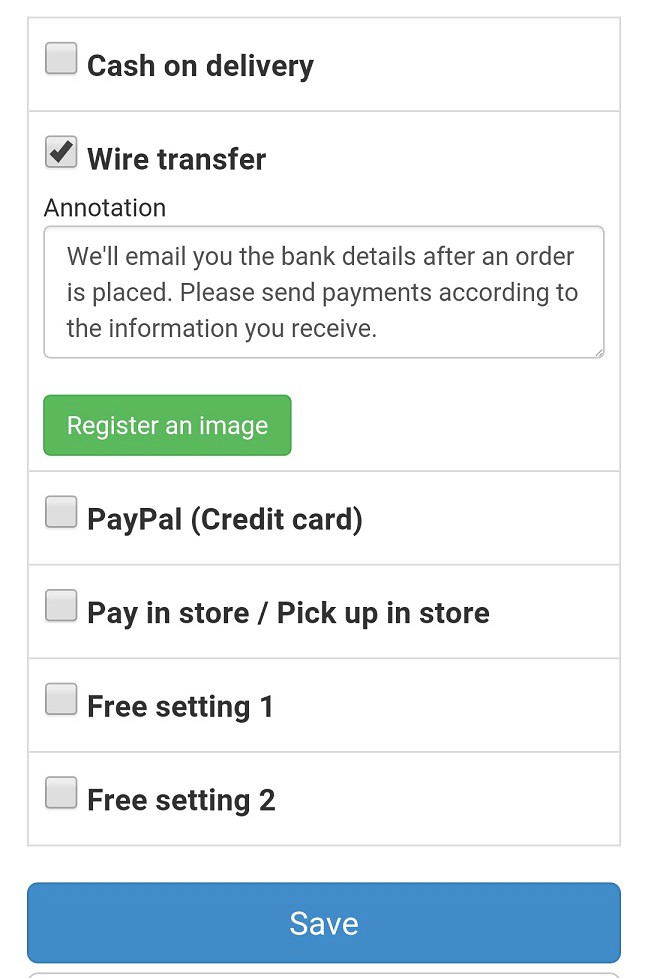
01)Cash on delivery
When the delivery company delivers the goods, it receives the price from the purchaser and transfers it to the specified account...Purchasers can purchase with confidence because they will be exchanged goods and money in same time...Depending on the dealer, when the price is transferred to the account, the commission is often drawn...
02)Wire transfer
After order confirmation, we will contact you with account information on the payee's bank account by e-mail, we will ship the item after confirming payment.
In order to prevent the buyer becoming uneasy, it is necessary to contact you each time such as order confirmation, payment confirmation, product shipping etc...Depending on the bank you use, the transfer method will be different, please check in advance.
03)PayPal (Credit card)
You can enter the card information on the order screen and complete the settlement on the spot...
04)Pay in store/ Pick up in store
Go to the store and hand it over at the store. It can be used for applications such as reservation and inventory reservation...
***Shipping fee setting***
By setting a shipping cost, you can charge a shipping cost to the total of the purchase price..Here you can added shipping fee as for world, region and the whole country separately...
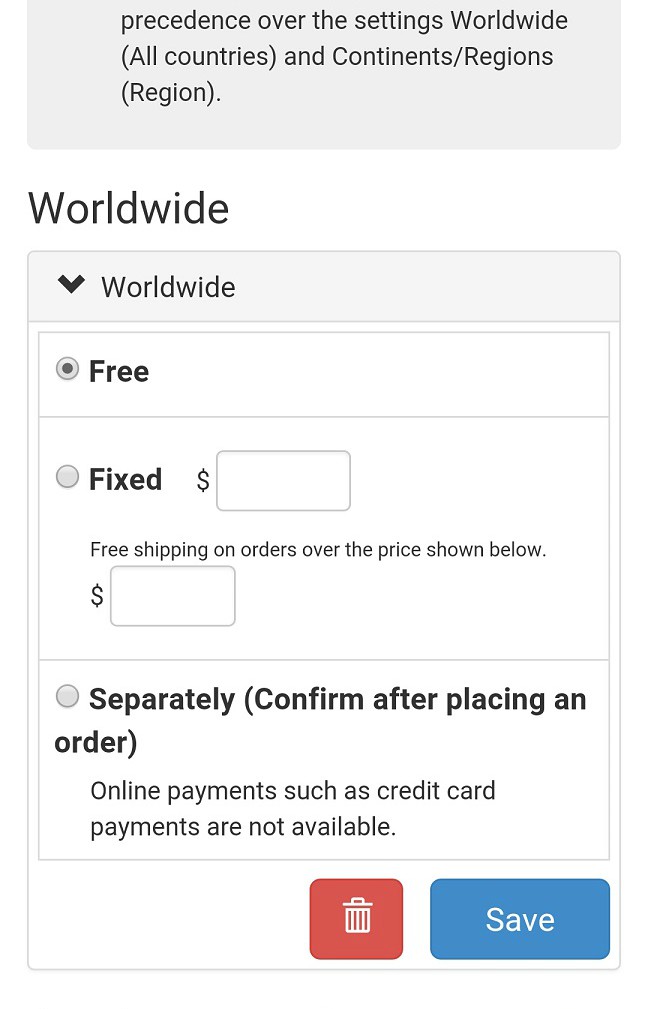
01)Free
We do not add shipping fee. The shipping fee will be borne by the selling side.
Please set the price of the item that you will not lose even if you pay the shipping cost.
02)Fixed
To the sum of the purchase price, the set amount is added as a shipping cost.
In addition, it is possible to set free shipping fee in any amount..Actual shipping fee depends on product size and delivery destination, so there are some cases shipping fee is less or more than actual ..If you set the shipping fee exceed the actual amount, the sales side will bear the burden..
03)Separately
After confirming the order, we will check the actual shipping fee and contact you with the final invoice amount via e-mail..In case of bank transfer, compatibility is good because it can communicate with contact of account information.
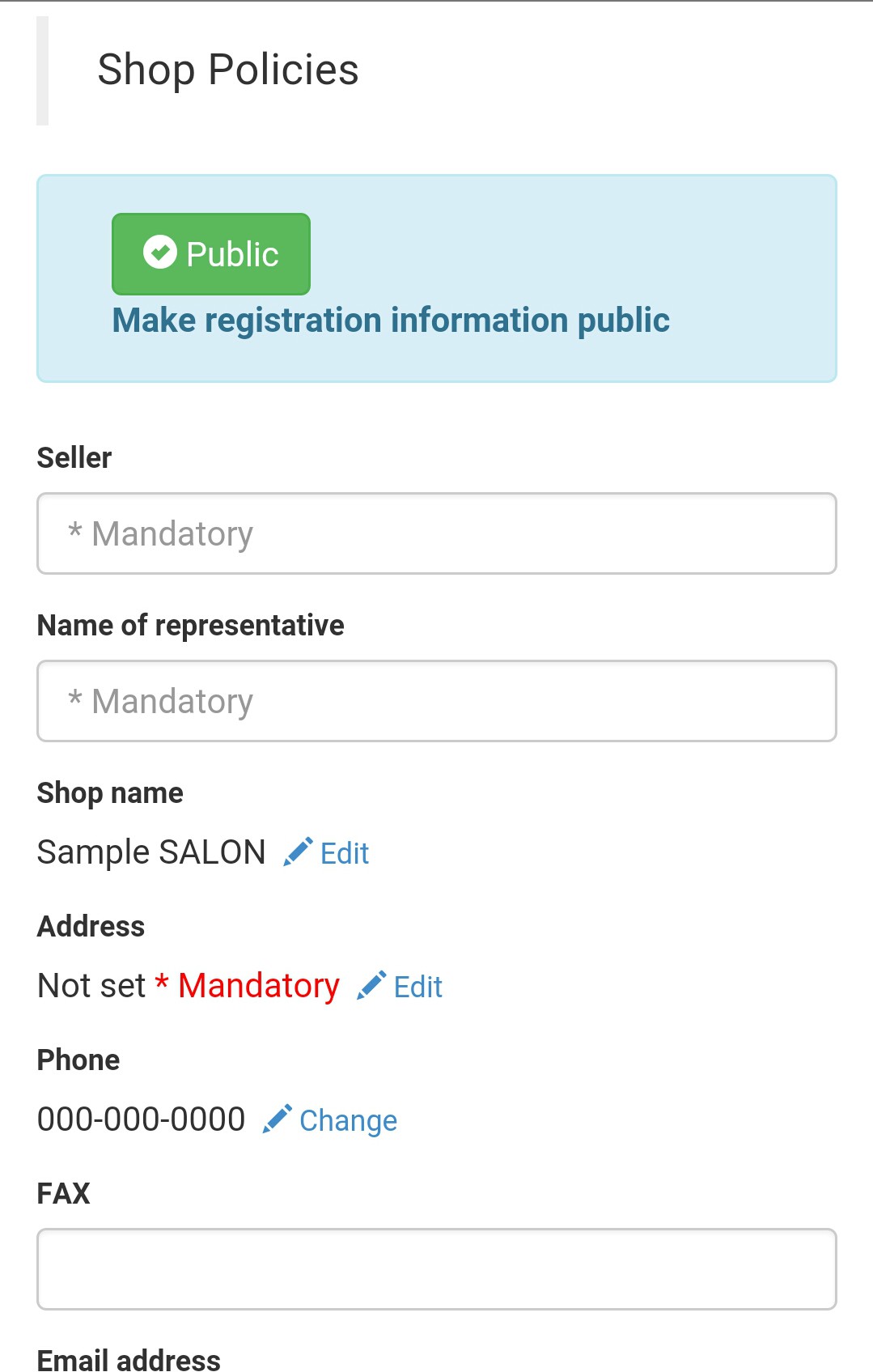
***Shop Policies***
When selling goods on the Internet, the law stipulates to clearly state seller's information..Items with obligation to display are prepared, so please be sure to fill in that part..If you do not click the green icon "Public" button, a warning will be displayed on the screen after putting the item in to cart..
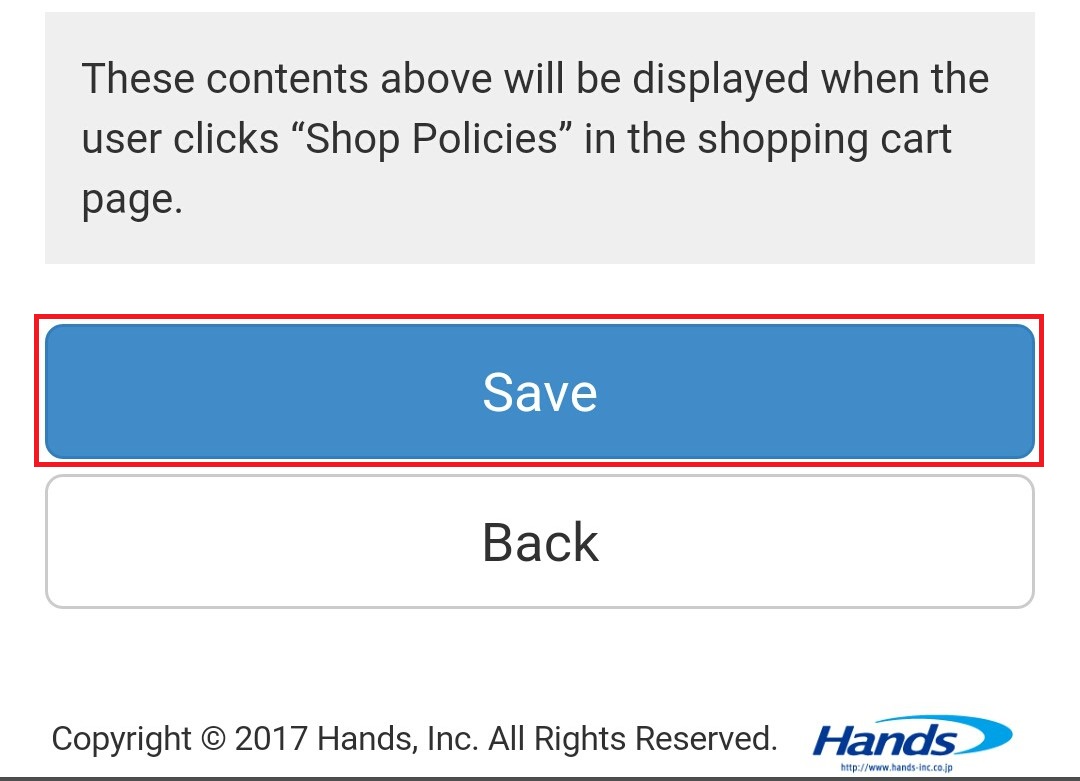
After the entering of information to the above format please push the save button at the bottom of the page...
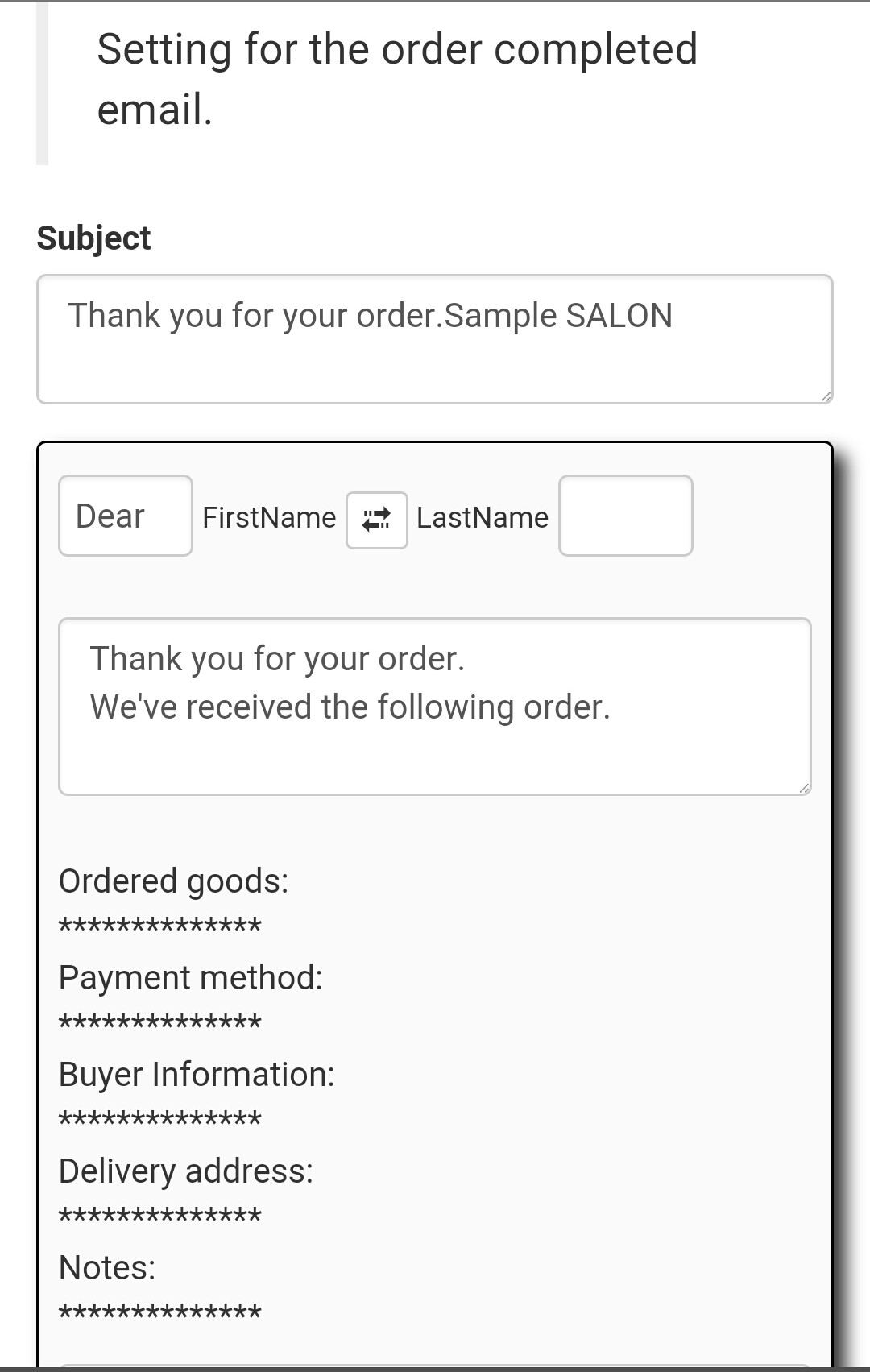
***Setting for the order complete email***
This is the e-mail you can send to your customer for confirming the order.. Here you can edit your customers name only.. Others are specified according to the customers order..
***Other***
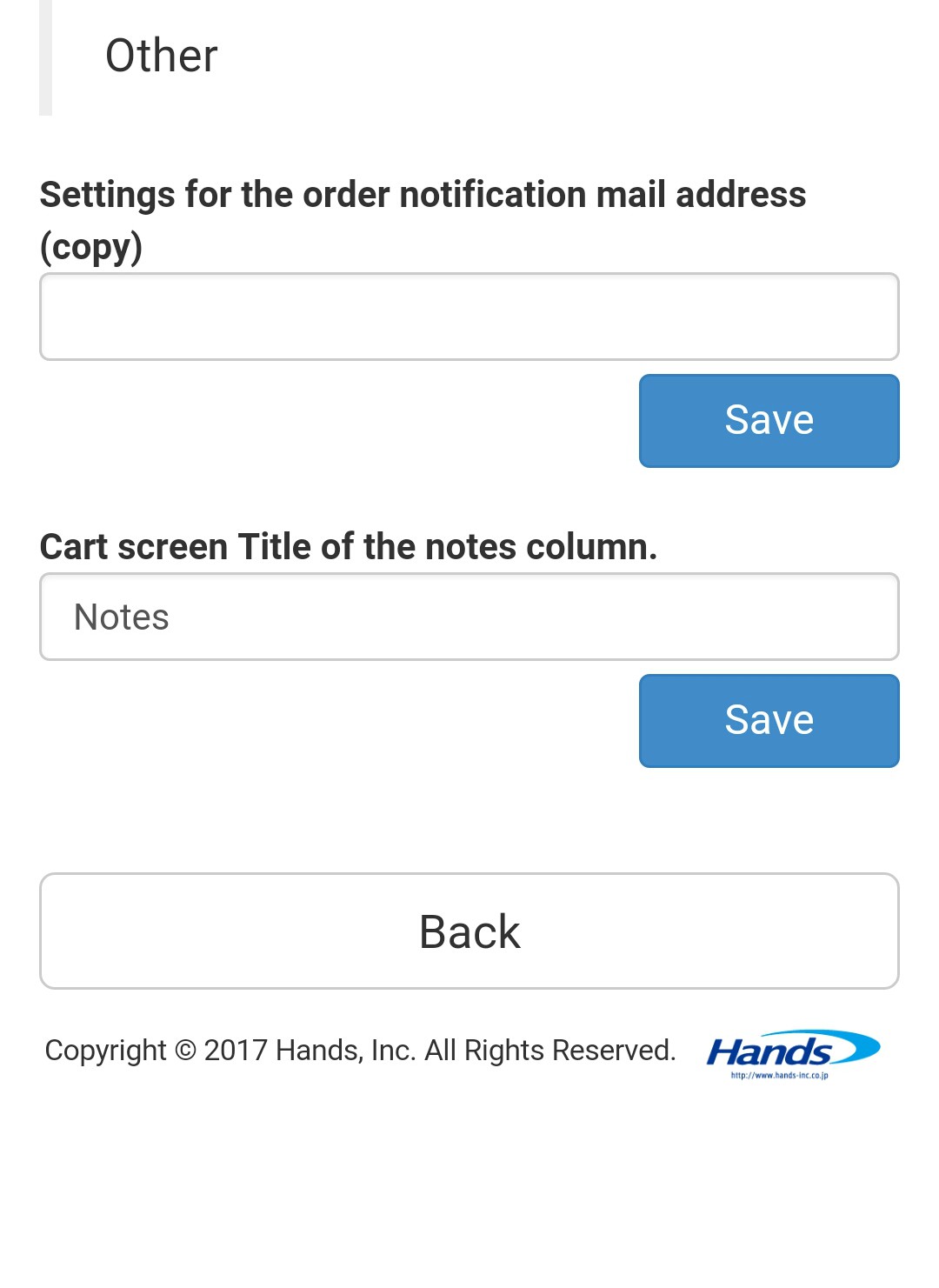
You can also send copy of order notification e-mail to another address...
Normally, the e-mail address set by the notation based on the Specified Commercial Transactions Law, but here you can use it if you want to receive it with another e-mail address as well...
As well as here you can set the title of shopping cart in the notes column or something information such as delivery destination etc...
***How to set the "Product" part***
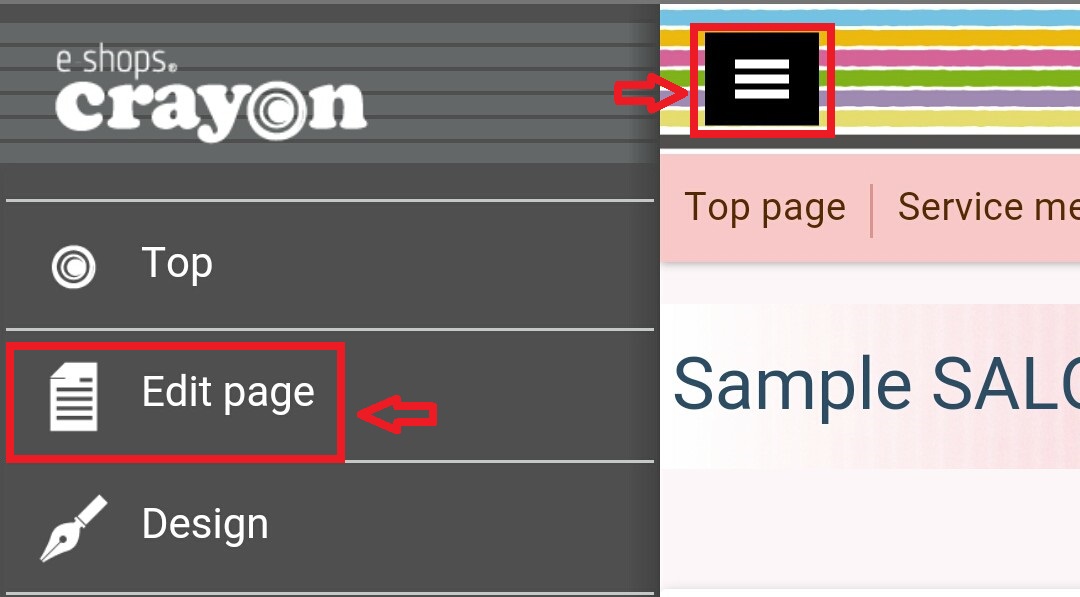
After the completing of the online shop setting screen you have to move in to the "products" parts.. here you can set your products in to the home page for sell.. First open the page where you place the product for sell and open the edit screen..
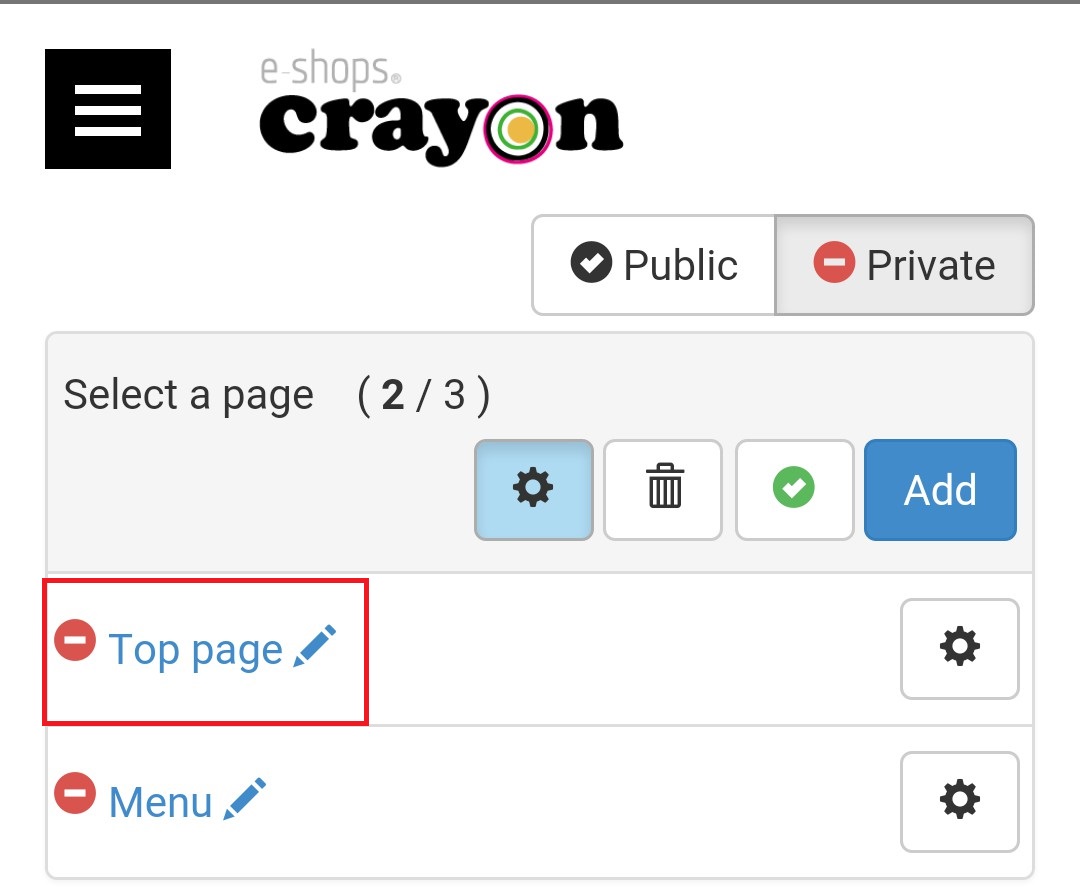
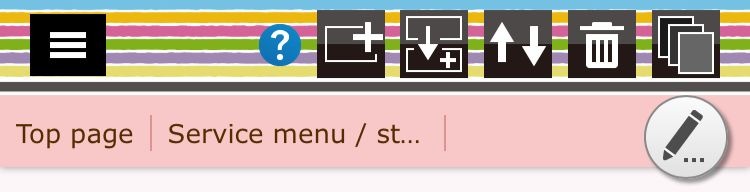
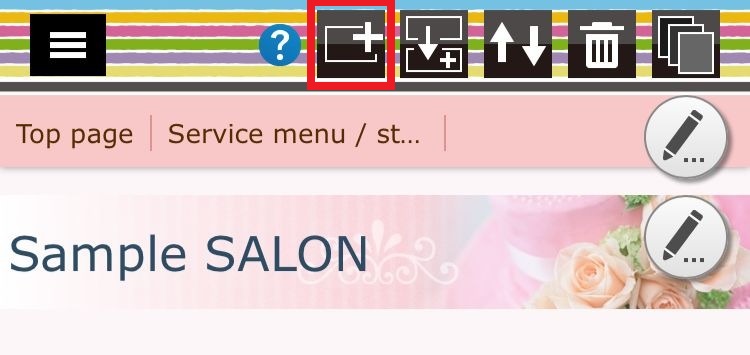
Then press the part addition button at the top of the page..
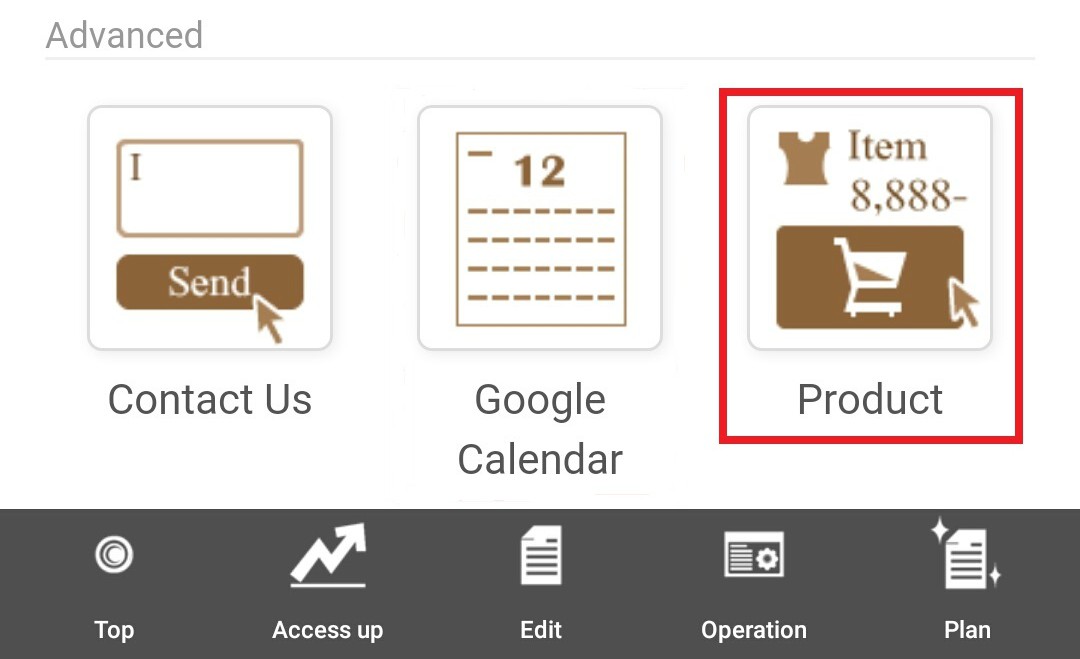
After that you can select the "product" part of the bottom..
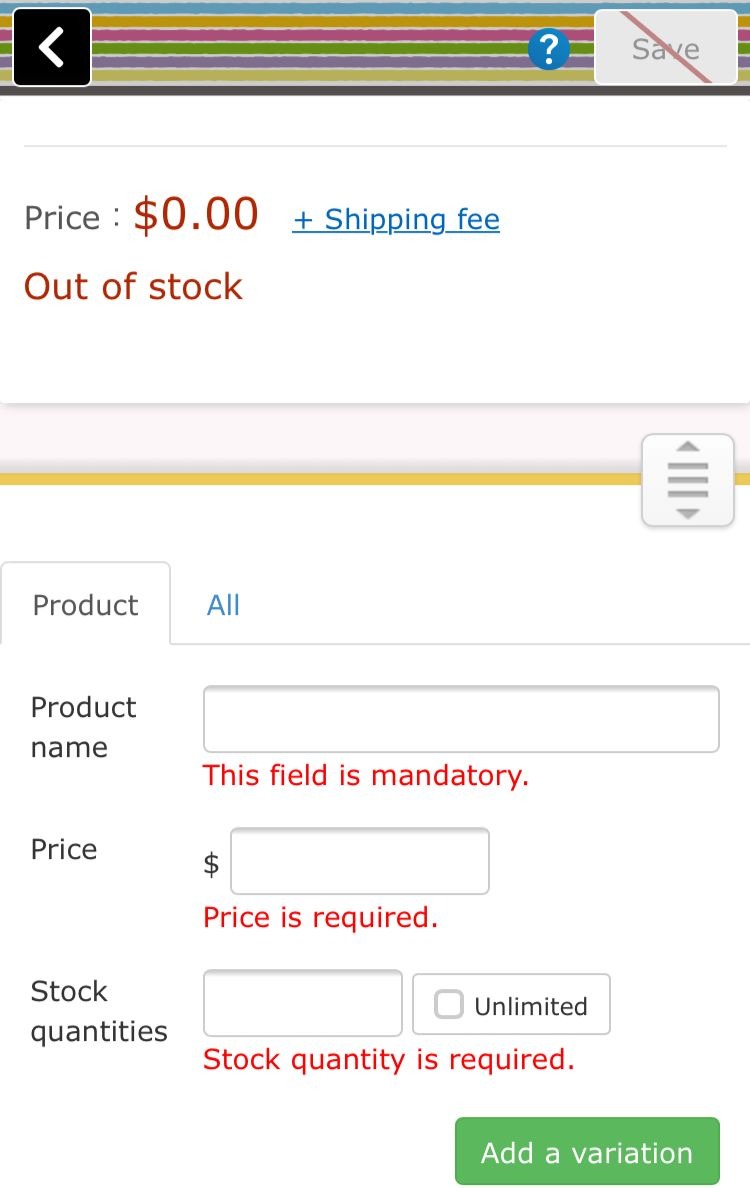
Then the setting screen of the product to be installed is displayed..
***Product Setting***
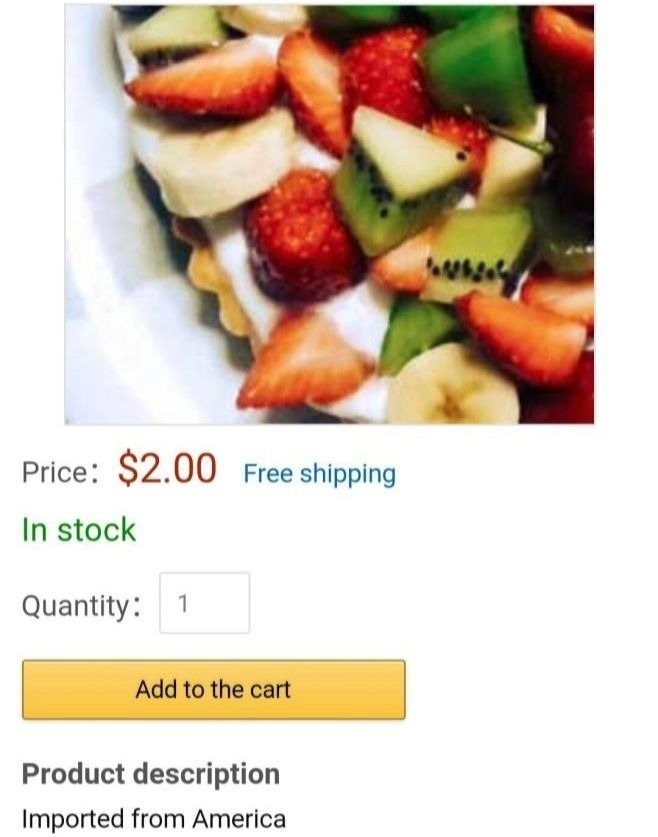
In the above page you can enter your products to be sell.. You can set variations such as size and color...As well as You can register up to 3 images of products... If you register more than 2 images, you can switch the display by sliding the image left and right...When registering two or more images, looking better if the height of the image is aligned... After the entering the detail of your products press the save button in the upper right.. Then the items will placed on your selected page like below....