To add a new page click on the "Add a page" button of the page edit screen
** procedure of the "page" addition**
Step 01
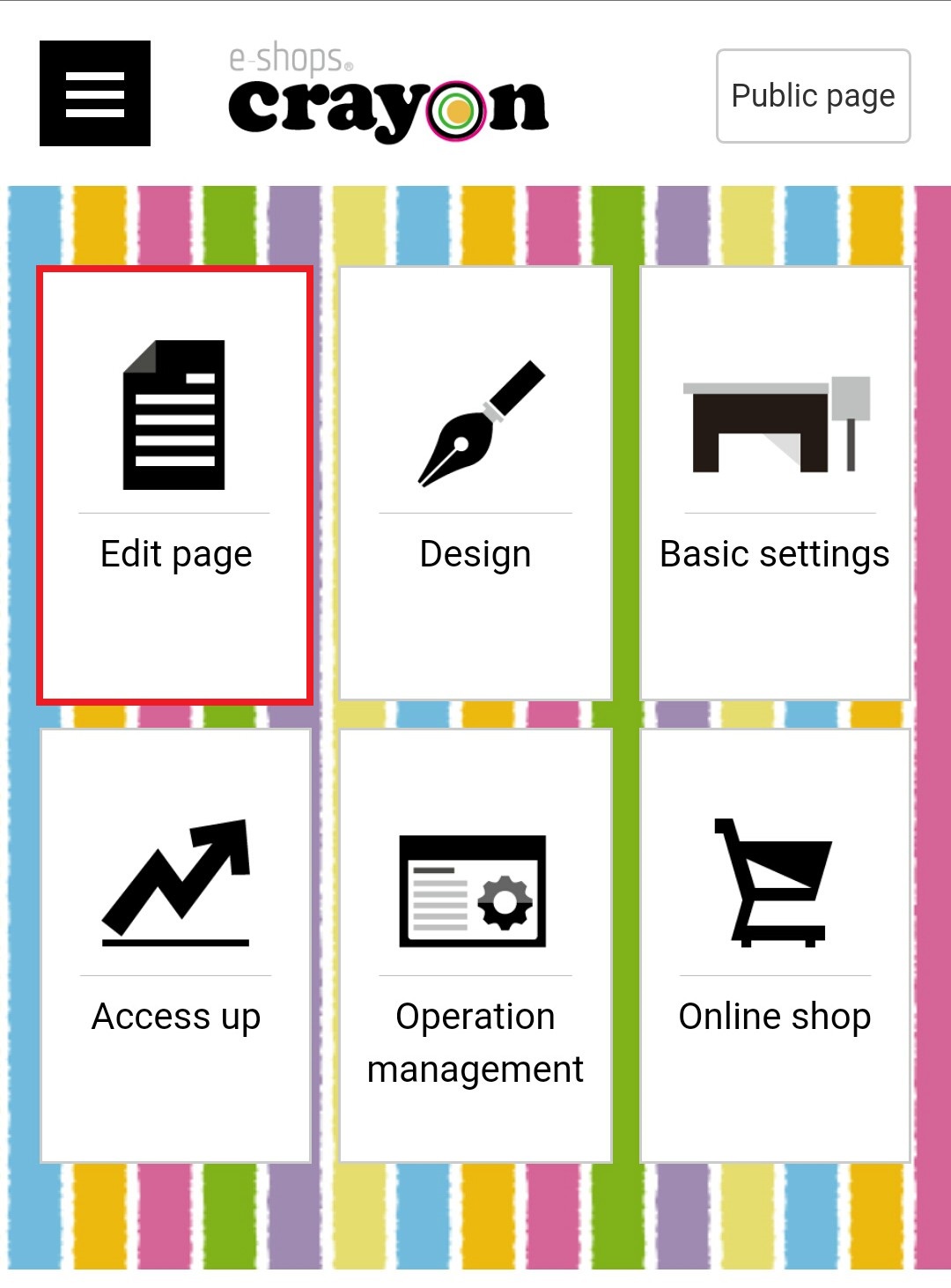
Click "Edit Page" on the e-shops crayon management screen
Step 02
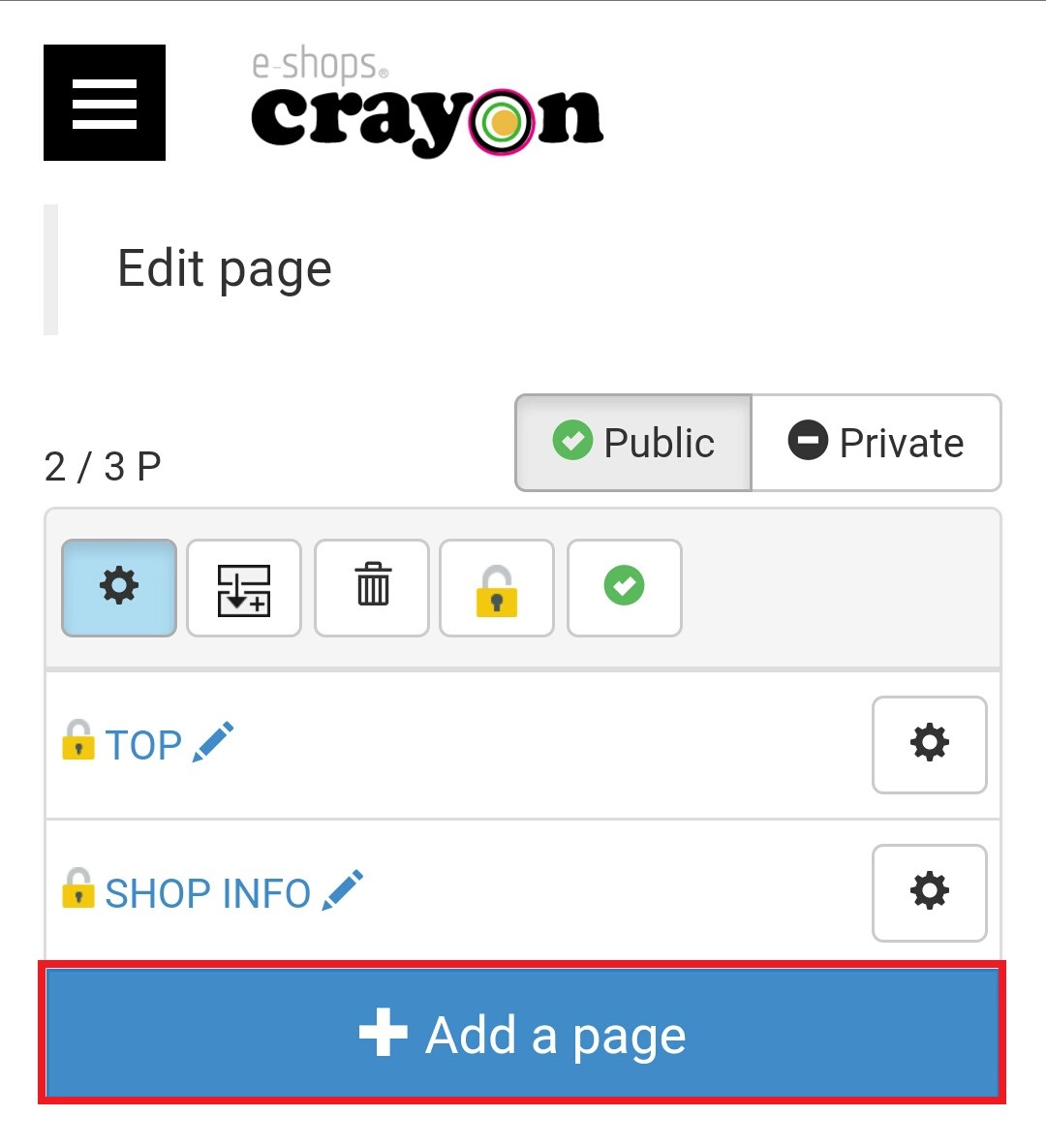
The "page selection" screen will be displayed, click the "Add page" button here..
Step 03
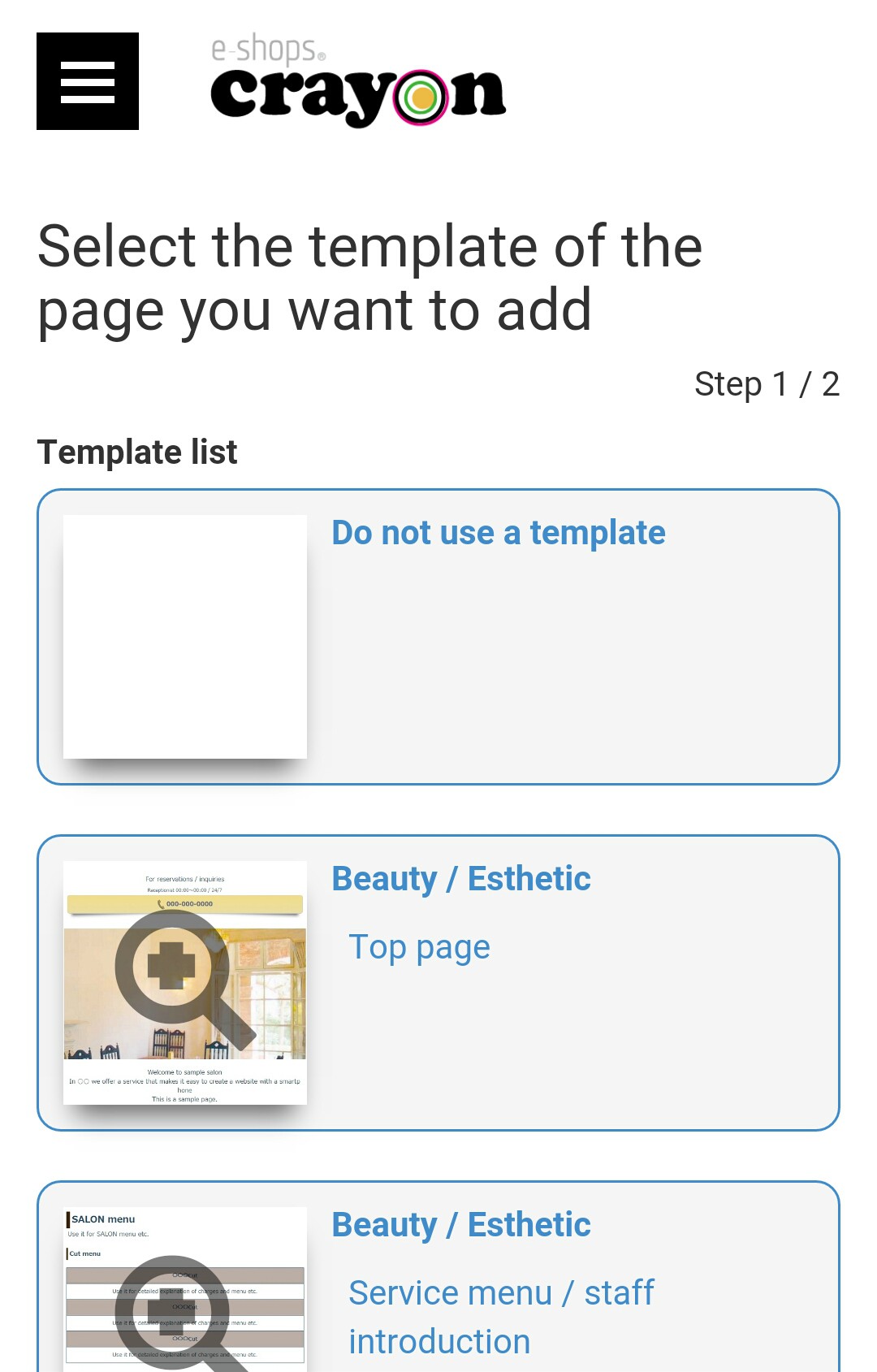
Then template selected screen will be displayed..Select the preferred template from here...
Step 04
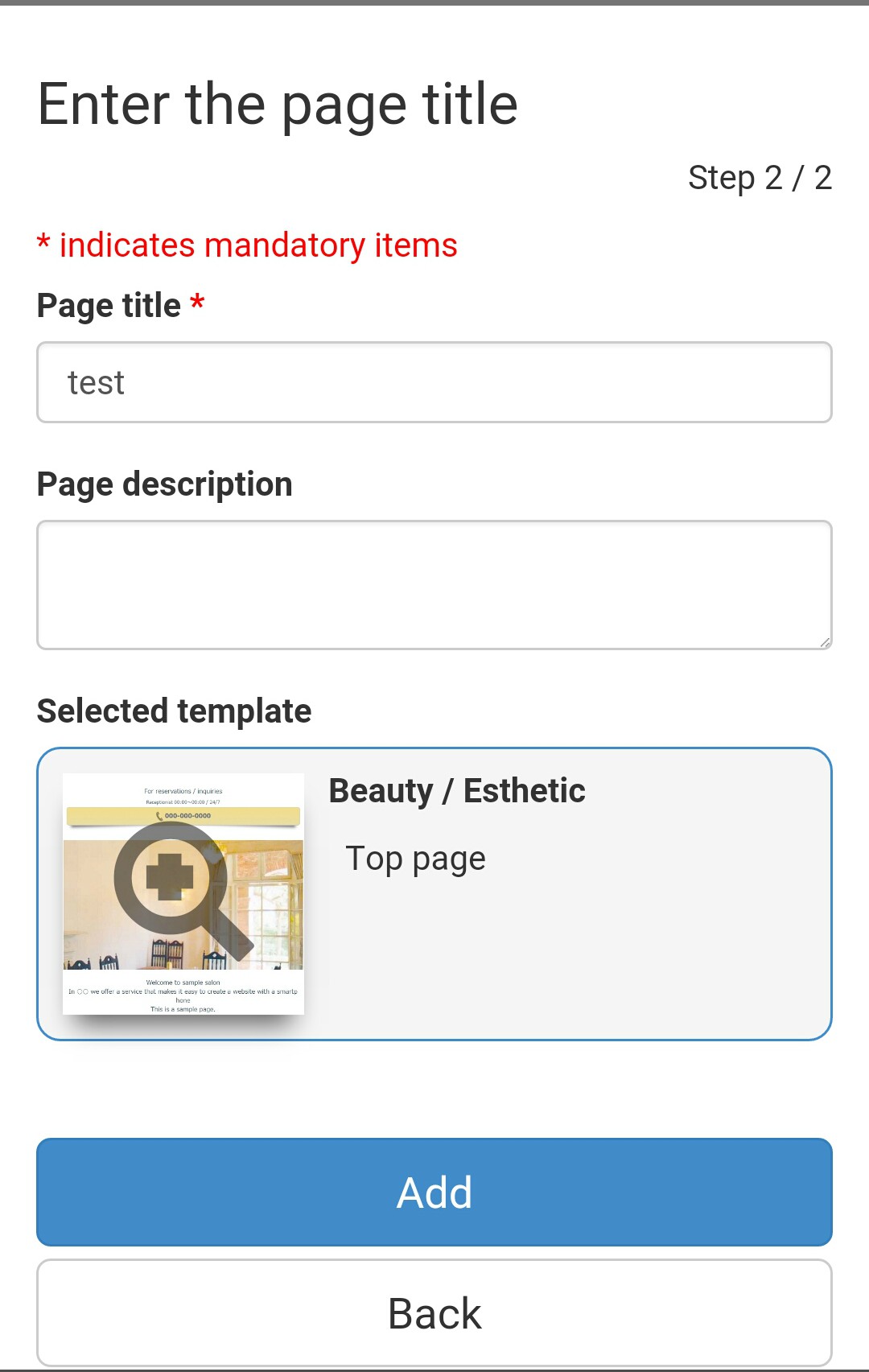
When selecting a template, the registration form of "page title" and "Page description" will displayed. Enter the necessary information and click "Add" button..
Step 05
When addition is completed, the editing screen of the added page is displayed..
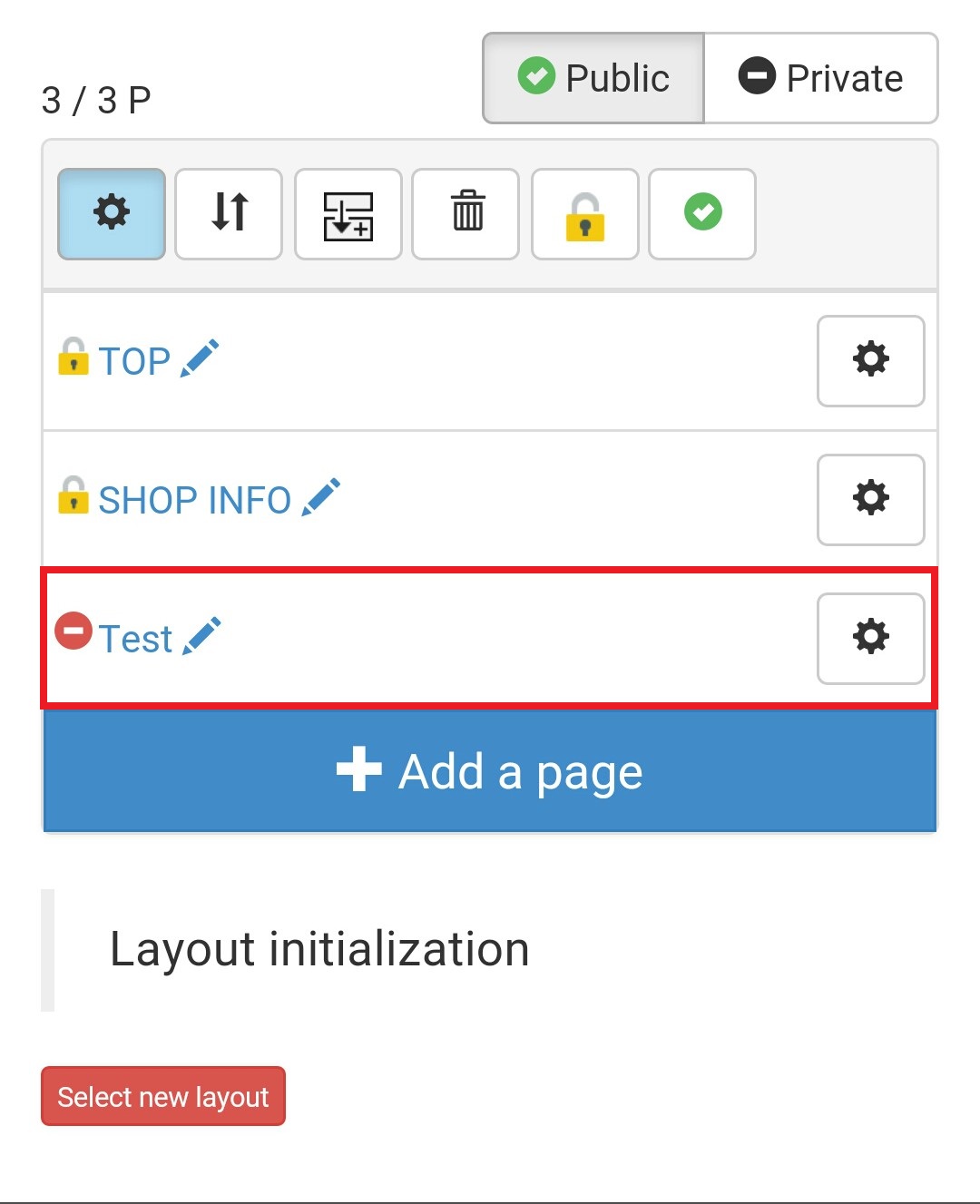
Step 06
Then Click on the green tick mark on the right hand top.. Now you can see the two icons called "public" & "private".. set it as a "public" in your added page also..
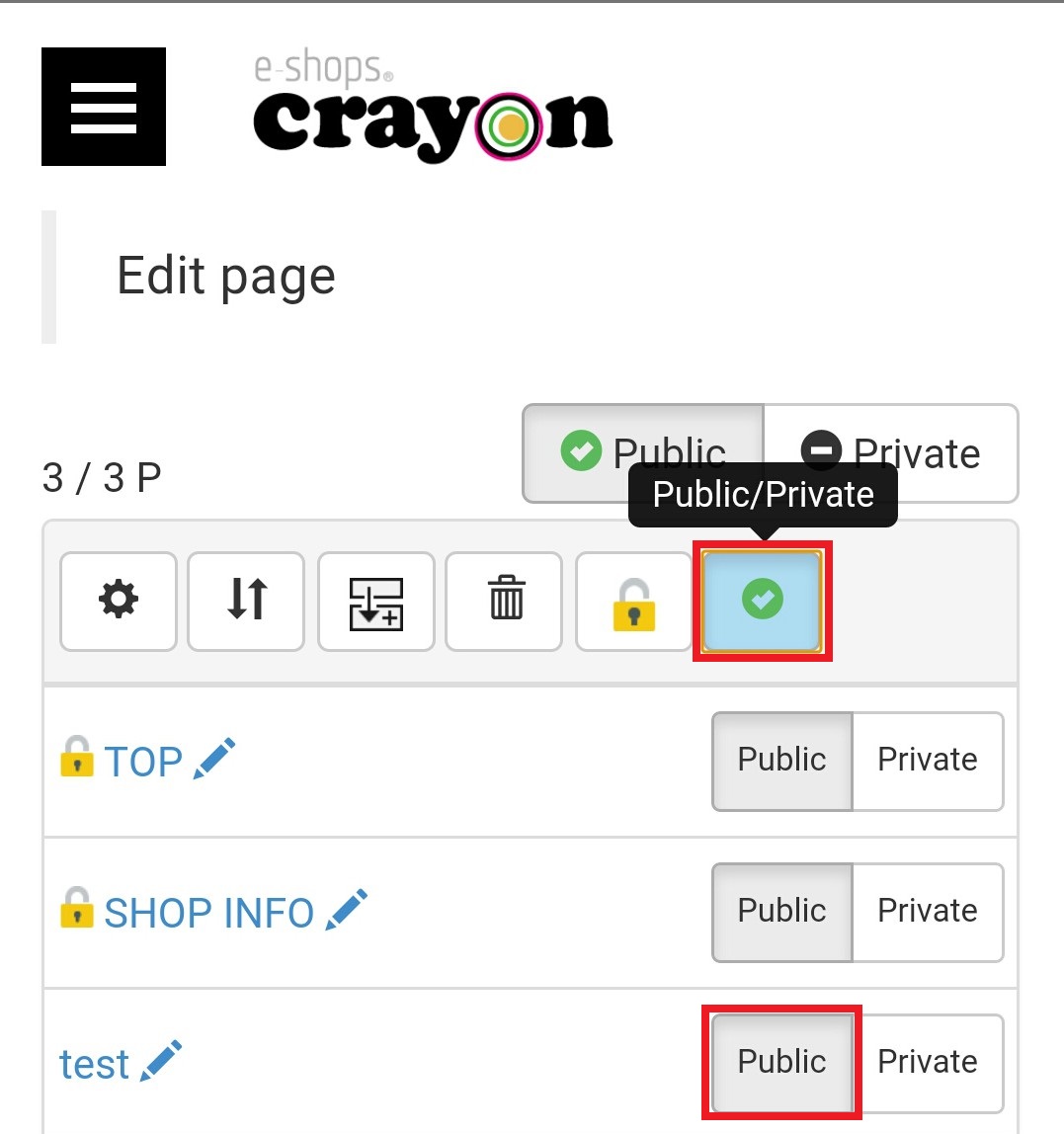
Step 07
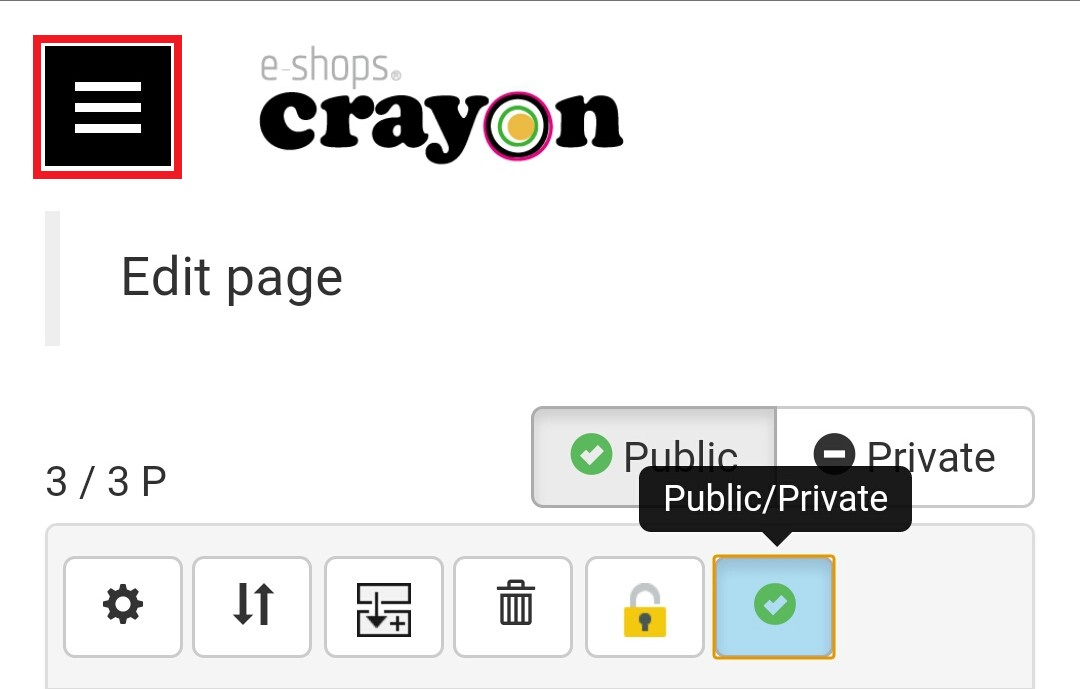
Now you can check whether your added page appearing on your published home page.. Click on the Setting mark in top of the left hand side and select the "Public page" icon from the side menu...
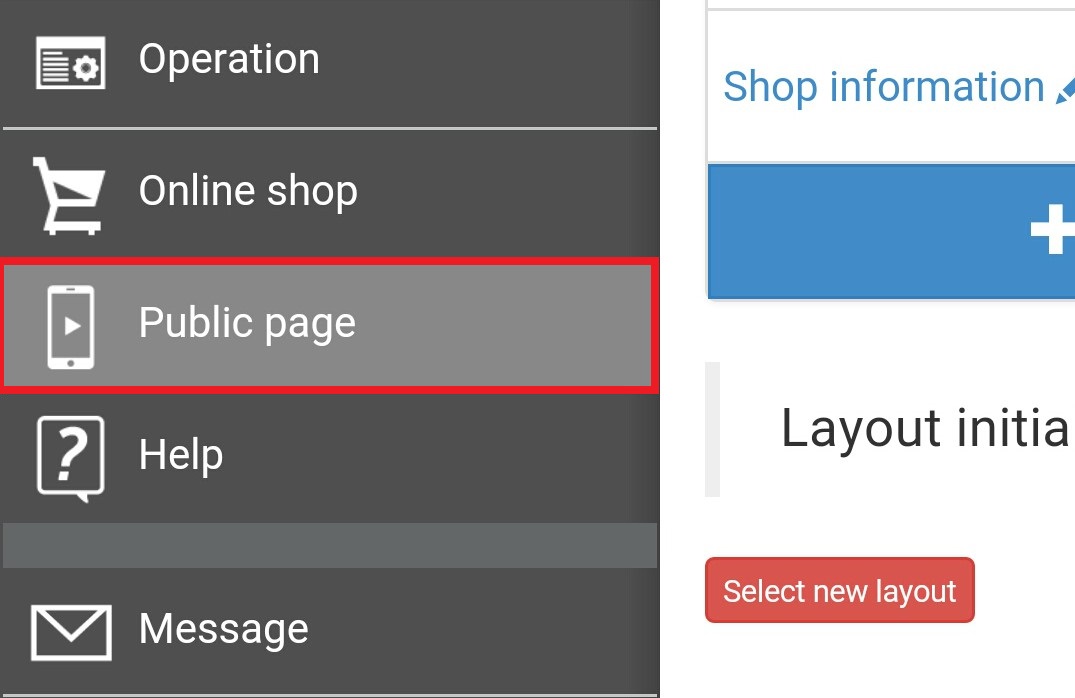
Now you can see your added page in your published webpage like this