You can rearrange the created "parts" by copying and moving in the same page and you can delete the "parts" you placed..
** procedure of copying, deleting and moving "parts"**
Step 01
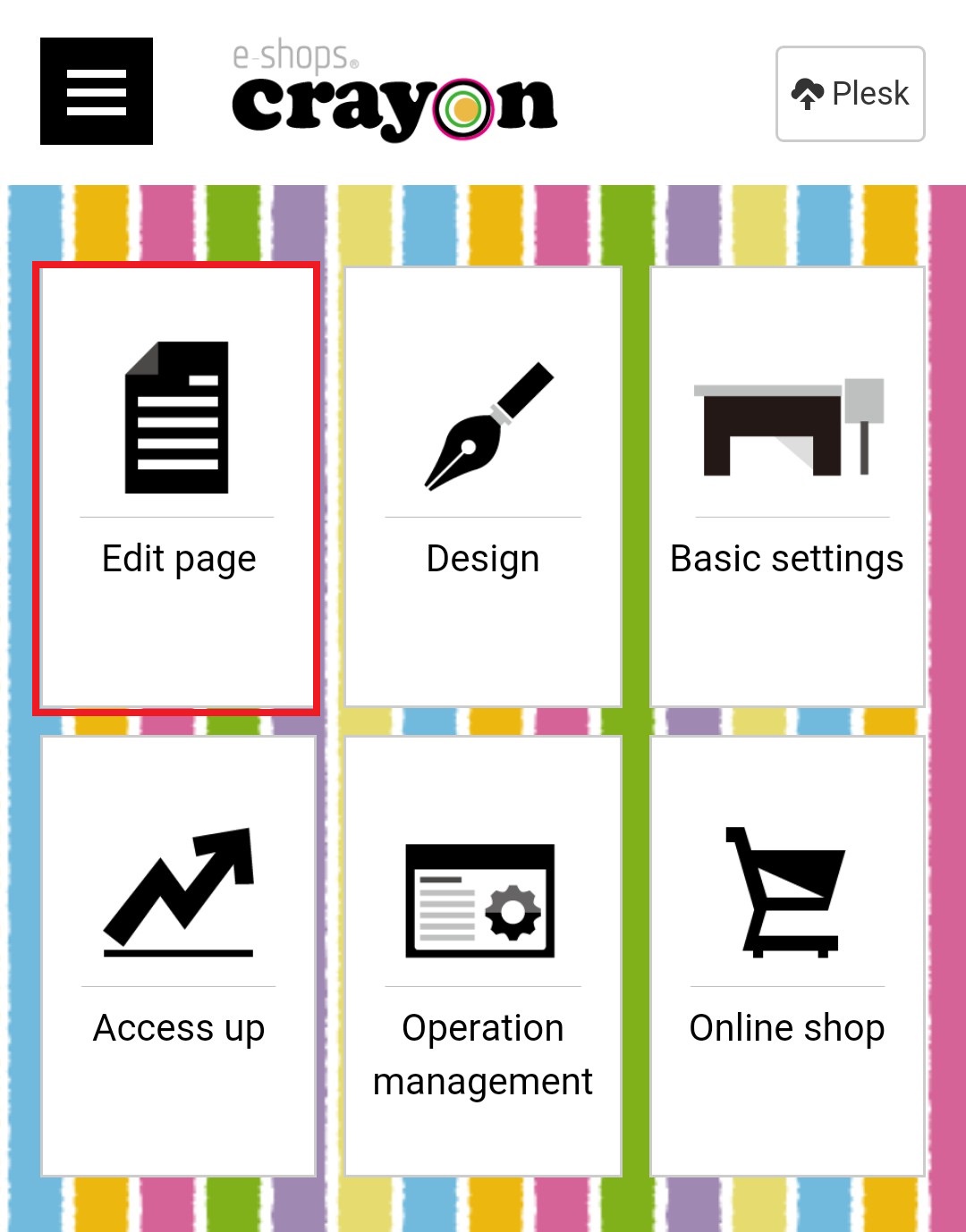
Click "Edit Page" on the e-shops crayon management screen..
Step 02
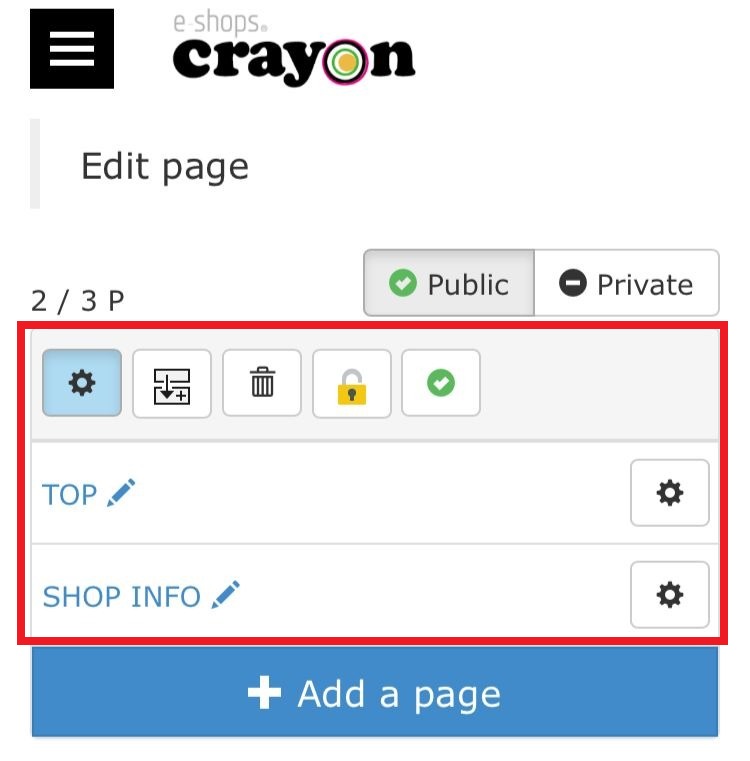
When the "page selection" screen is displayed, clicking on the "Page title" or "edit icon" switches to the public page edit mode.
Step 03
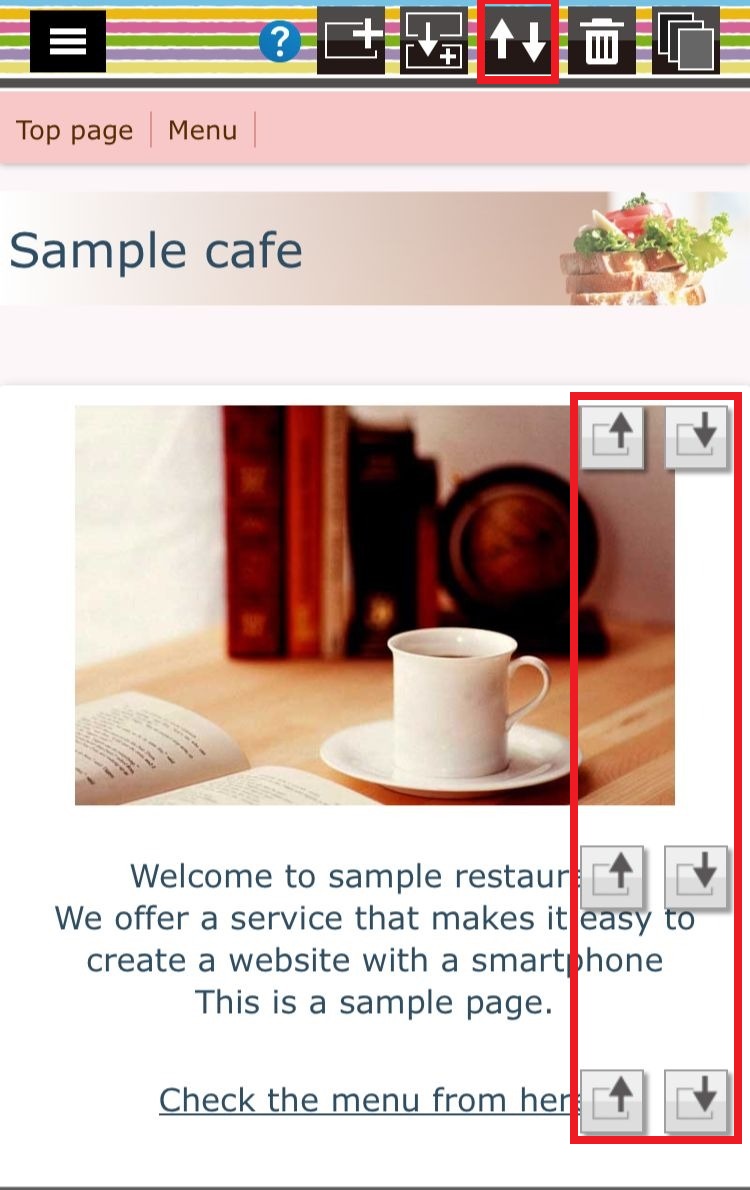
Click on the "mode switching button (↑ ↓)" at the upper right of the editing screen for moving parts
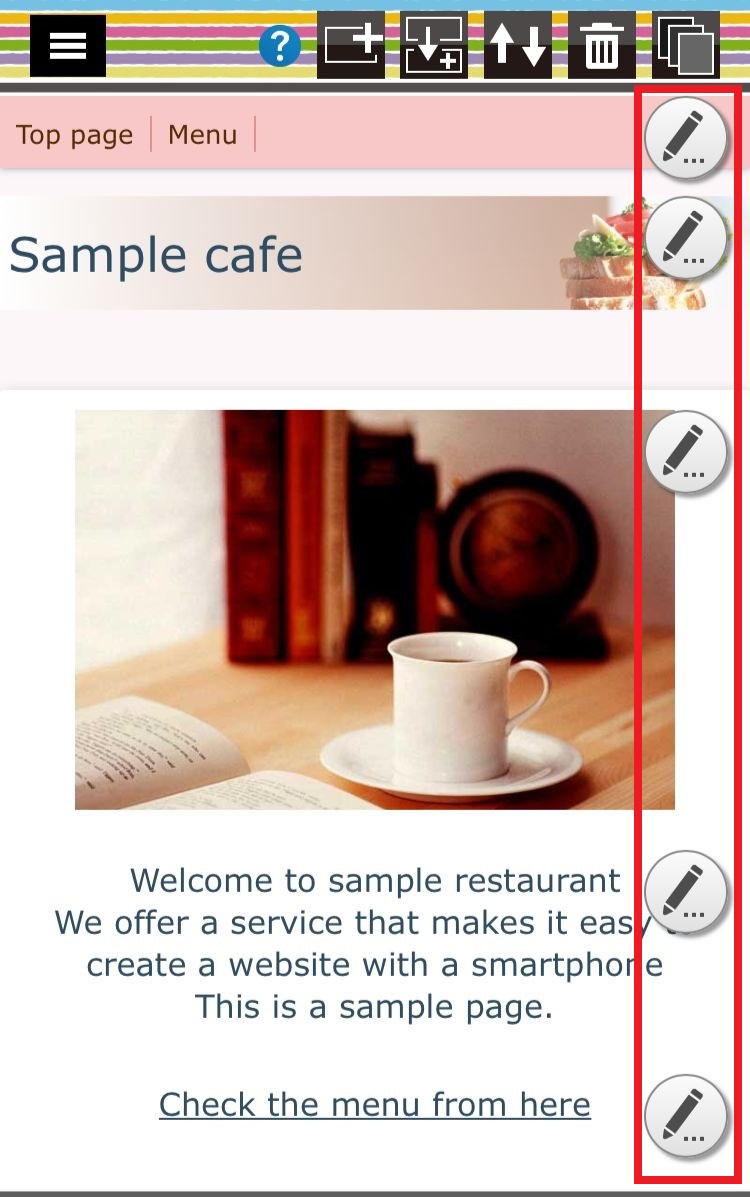
**Part edit mode**
This mode allows editing parts itself, changing the settings of each part, changing characters, images and etc..."Part edit mode" is state where the edit icon is displayed at the right end of the part..
**Part placement edit mode**
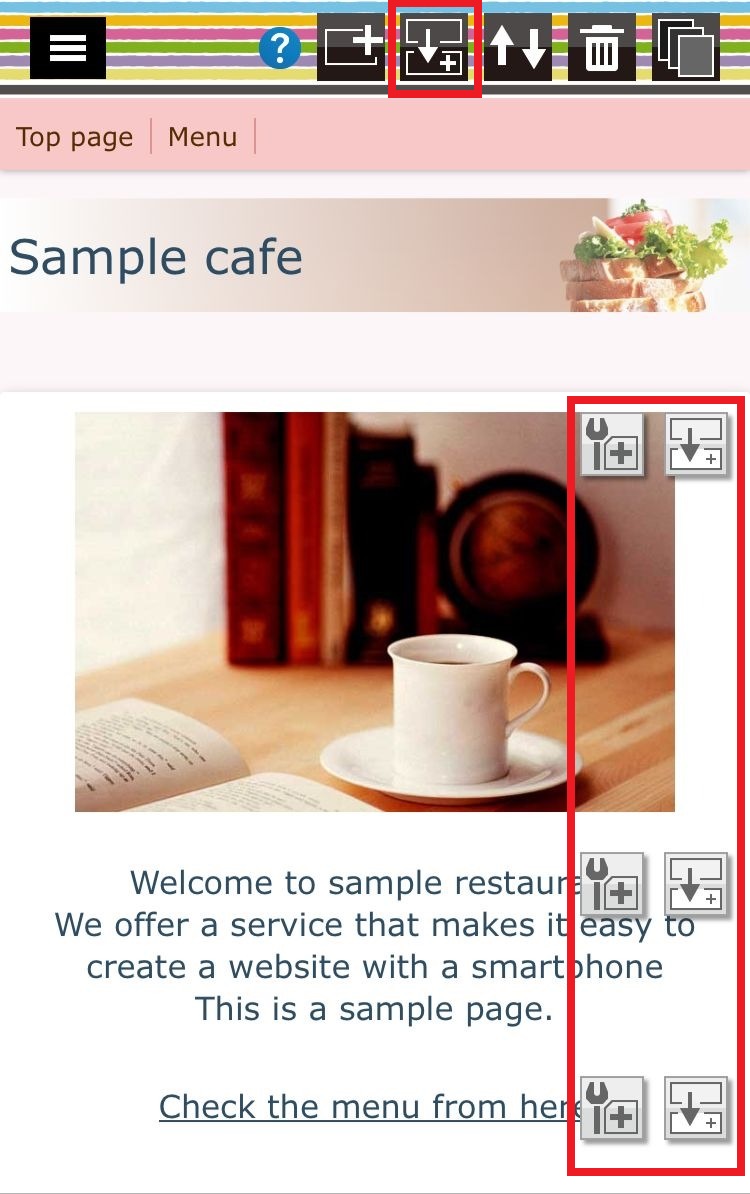
This mode allows you to copy, move each part and edit the placement of parts..
**Delete parts**
Click on the "Delete parts" icon of the right... Then the deletion confirmation message will displayed.. Clicking on "OK" will delete the target part..
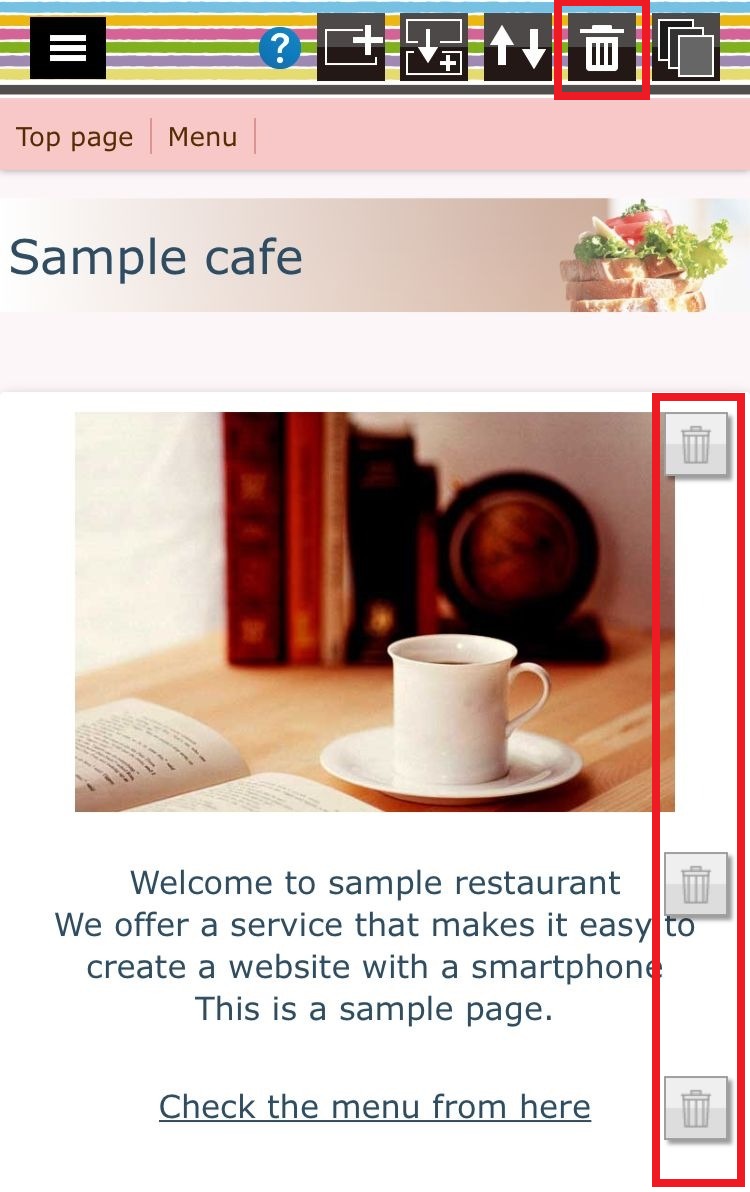
**Please note that you can not restore parts that you deleted once...
** Further you can move and copy the parts using these arrow buttons..(Headers and footers can not be moved.. Also, you can not move a part across a page)