There are two methods of editing parts..
1) How to edit the whole part ?
You can edit the overall parts settings including design etc.. It is an editing method suitable for cases where you want to add and edit contents including page composition..
2) How to edit only text part (headline ,contents and image)
It is a simple editing that edits only the comment of the heading, contents of the already placed parts and swaps the photo.. It is an editing method that is suitable for every day editing task such as modifying titles and comments, or just replacing photos..
**How to edit the whole part**
Step 01
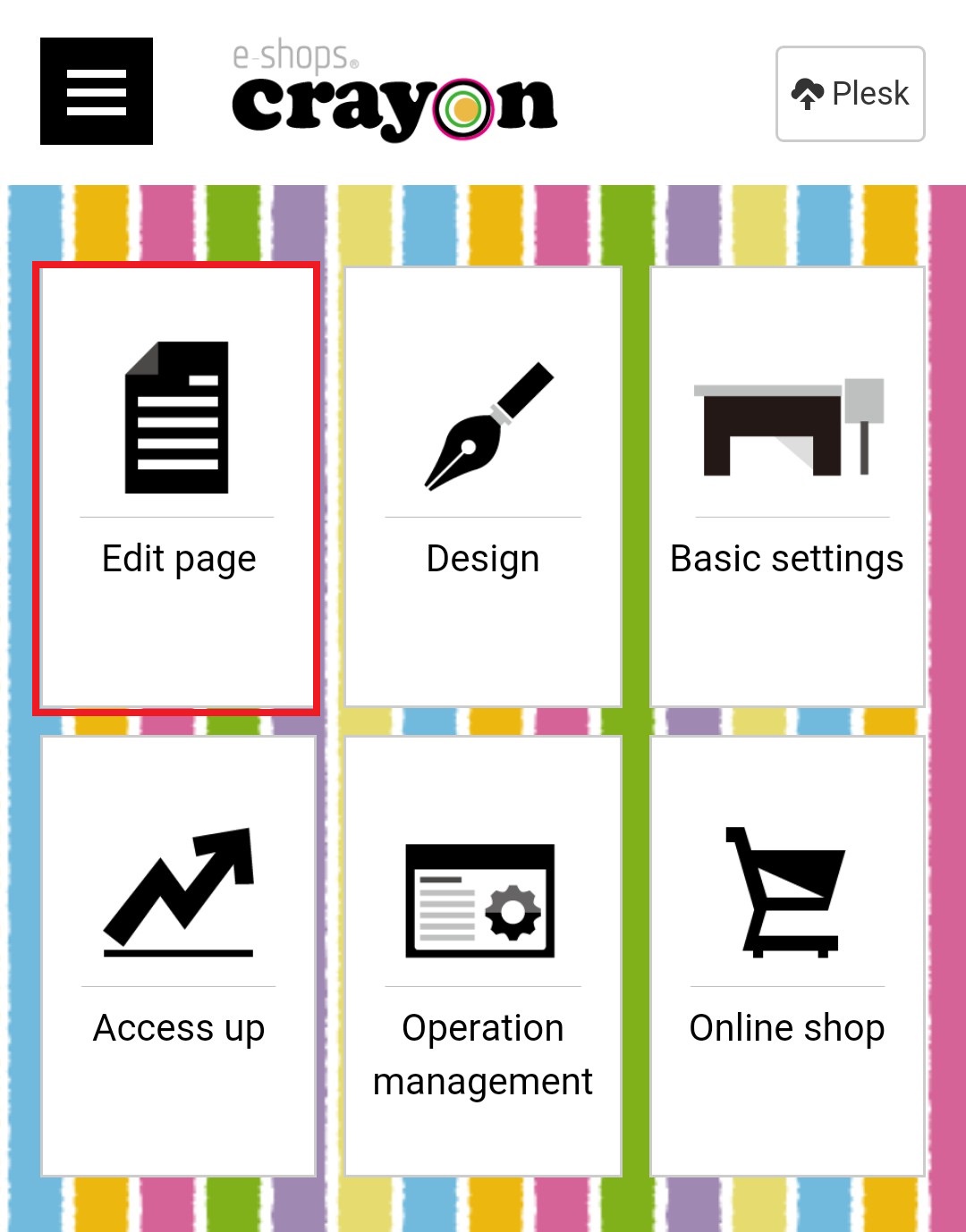
Click "Edit Page" on the e-shops crayon management screen..
Step 02
When the "page selection" screen is displayed, clicking on the " Page title" or " edit icon" will switches to the public page edit mode..
![]()
Step 03
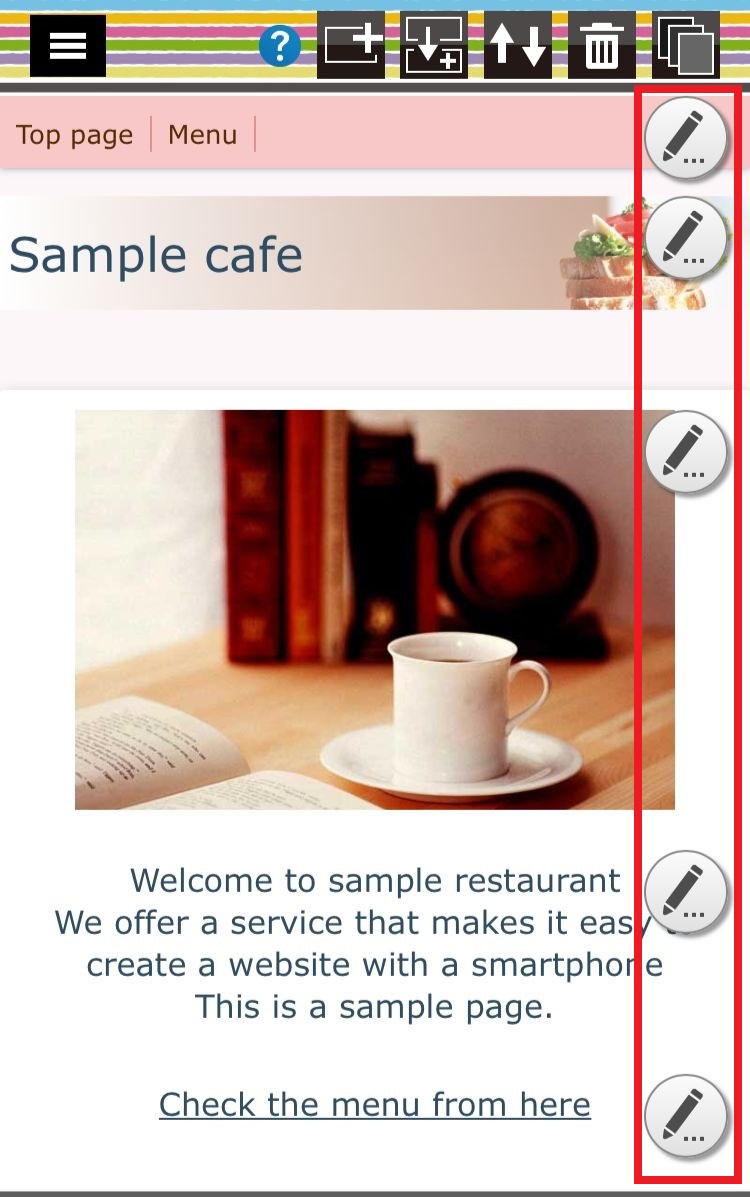
You can edit each part of the page pressing edit icon ..
Step 05
When editing is completed, click the "Save" icon at the top of right, to save the edited content and exit the edit screen...
Notes -
* Click the Save icon to save the information you registered or edited..
* If you close the screen without saving or move to another page, the contents will not be saved..
* Click on the "Delete" icon to delete the part you are currently editing..
* Since the parts can not be recovered after the deletion, please be careful when working..
*Click the arrow icon on top, to return to the previous page..
**How to edit only text part**
Step 01
Click "Edit Page" on the e-shops crayon management screen..
Step 02
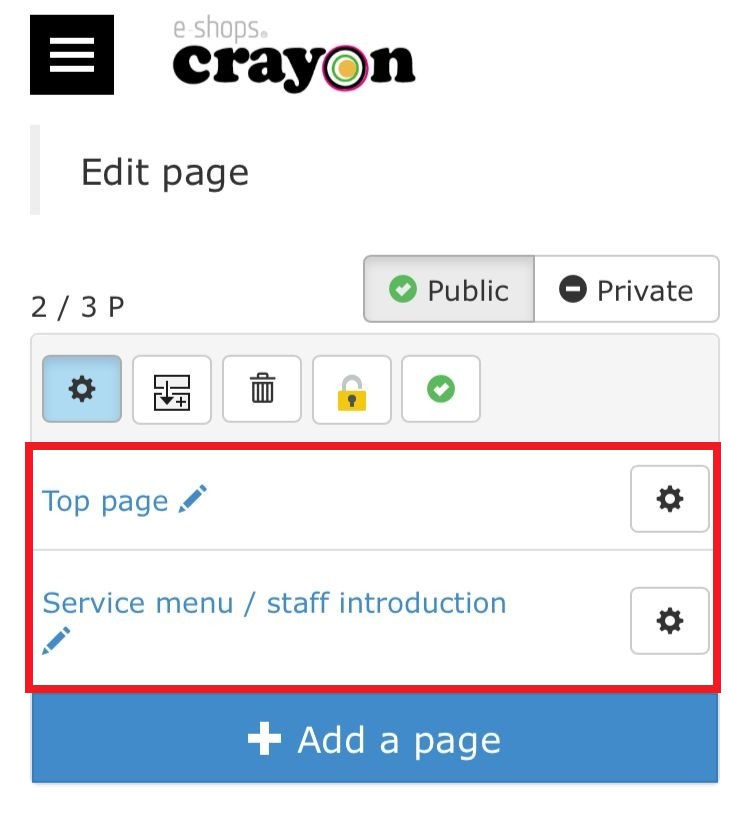
When the "page selection" screen is displayed, clicking on the "Page title" or "edit icon" switches to the public page edit mode..
Step 03
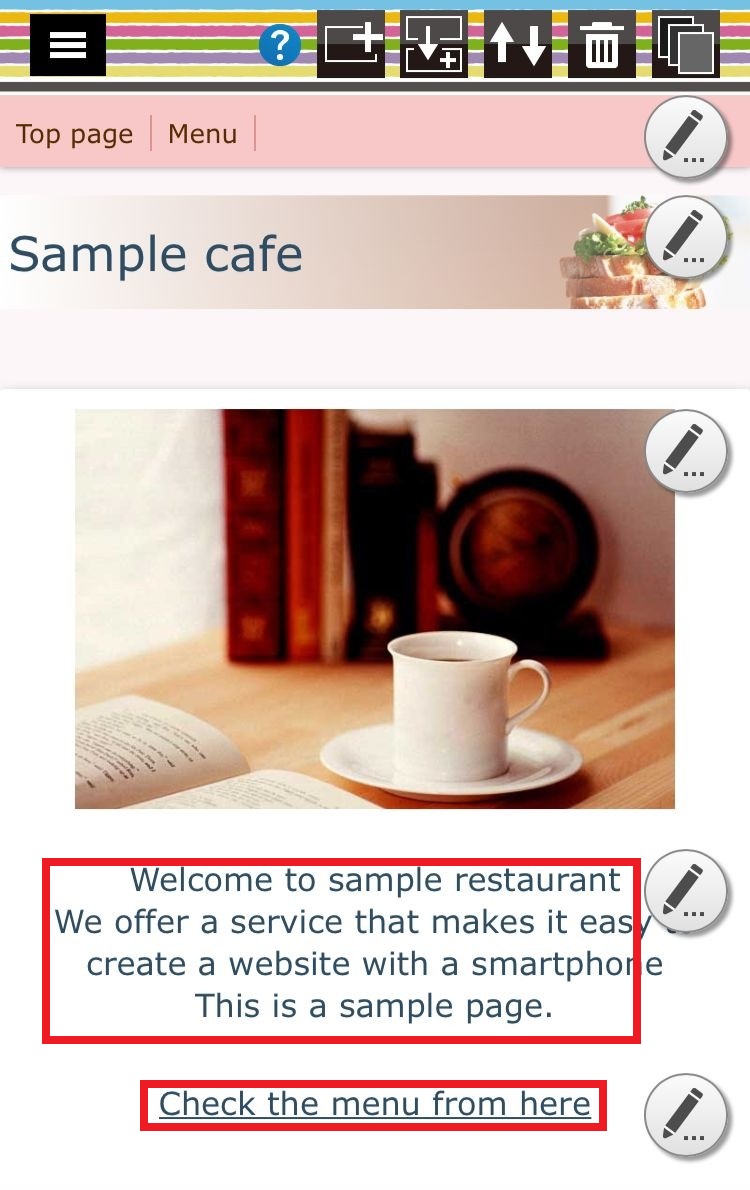
When you click on the text it will open the text edit part
Step 04
Clicking on the image will launch the image library, So you can change the image from there..
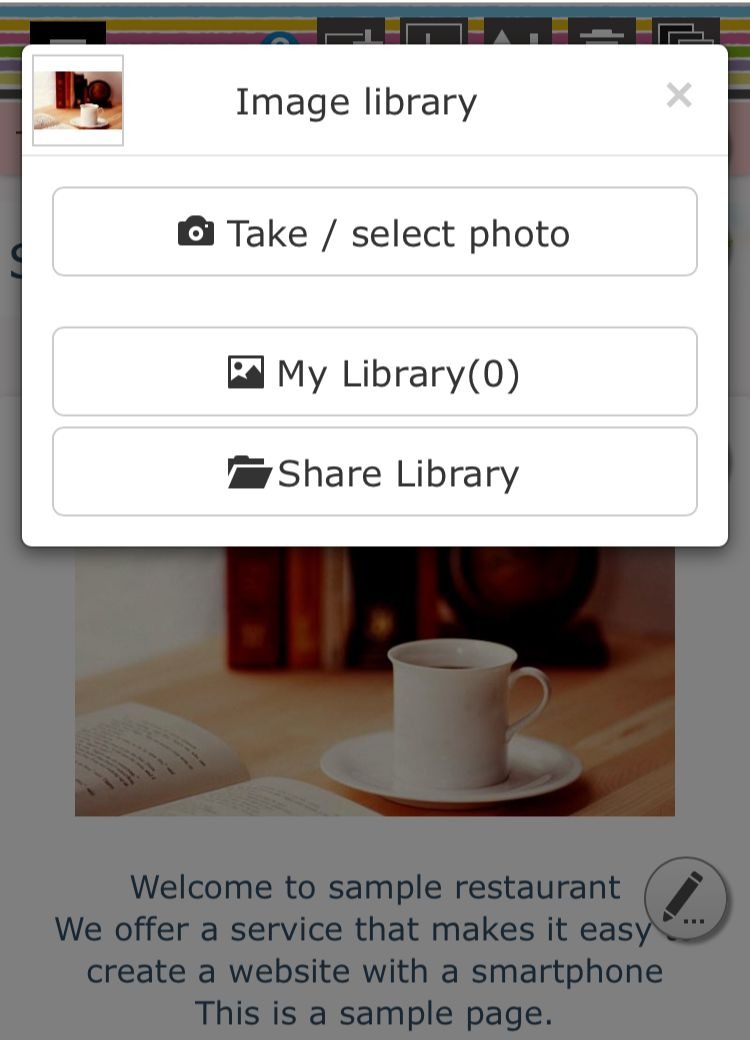
Step 05
If you click on the text such as headline, contents, etc., the text edit form will be displayed, You can correct the text from there...
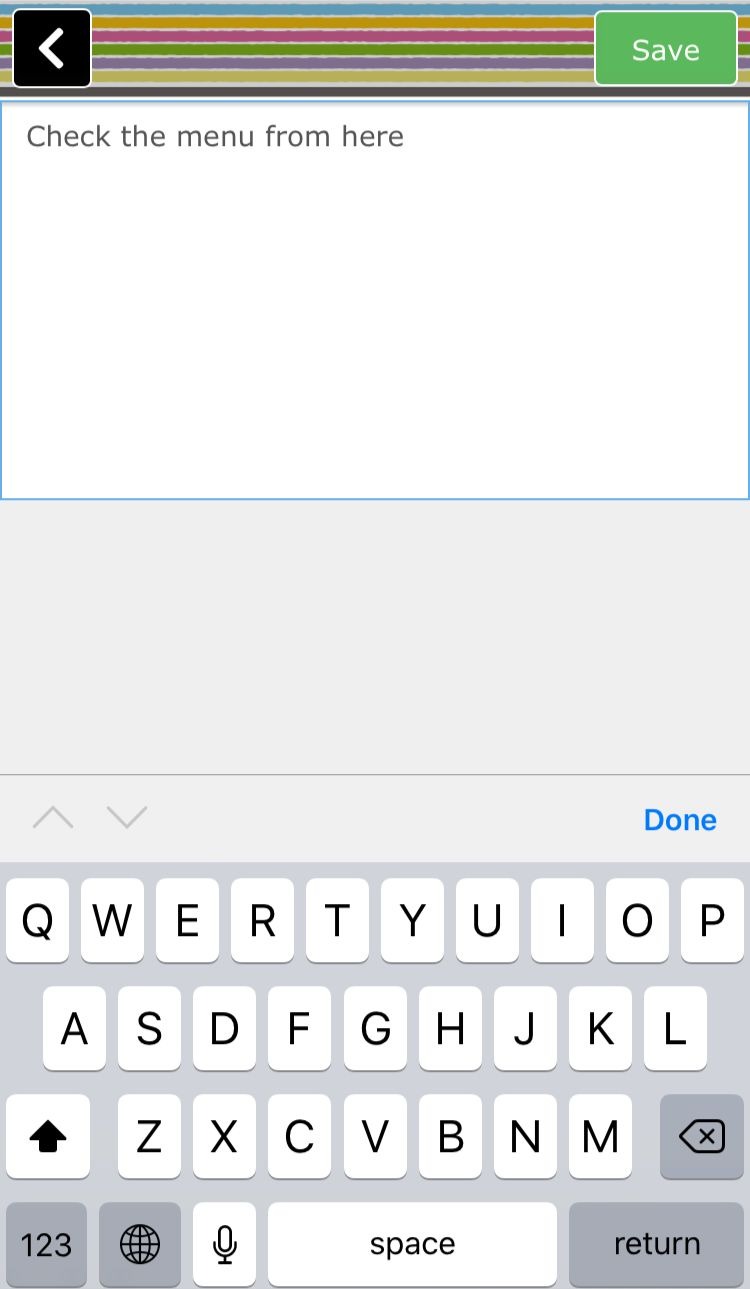
Click on the content (text), the text edit form will be launched...
By clicking on the icon at the top of the editing screen, you can save editing data and move on pages..